Check a proof
On the public verification page with number and check code or with the file, and by hand with the manifest and public key.
6 minute readAnalyticsUpdated: 10/25/2026
On this page
Before you start
- For
- Anyone who has received a proof and does not want to take it at face value, for example a manufacturer’s agency before it approves an invoice. Also anyone who checks their own proof before passing it on.
- Prerequisite
- The proof as a PDF, or its number with the check code. No account with Szenera is needed. For the check by hand, a command line with
opensslversion 3 or later andshasum. - Where in the portal
- The verification page on the Szenera website, whose address appears in the footer of every page of the proof. In the portal, Analytics › Proofs tab › Verify leads there.
At the end, you know whether a proof comes from Szenera and has not changed since it was signed: on the public verification page with the number and check code or with the file, and, for those who want to be certain, by hand with the manifest and the public key.
The footer of every page of a proof carries the Number in the pattern SZN-2026-000398, the page number, the checksum of the figures, and the Check code, twelve characters in three groups such as K7QF-2M9P-XW4D. Number and check code belong together: With the number alone, the verification page shows nothing, so that nobody can enumerate other people’s proofs by counting up the numbers.
Steps
With number and check code
- Open the verification page. It asks: “Did this proof come from us, and is it unchanged?”
- Under With number and check code, enter the Proof number and the Check code. Capitalization, spaces, and hyphens do not matter, and the number may omit its leading zeros:
SZN-2026-398is the same number asSZN-2026-000398. - Click Verify.
With the file
- Under With the file, drag the PDF onto Drop the PDF here or click choose a file. The verification page accepts files up to 20 MB, including the manifest and the hourly log of a proof.
- The verification page calculates the checksum of the file in your browser and reads the number and check code from the PDF. The file itself never leaves your computer. Only the number, check code, and checksum go to Szenera.
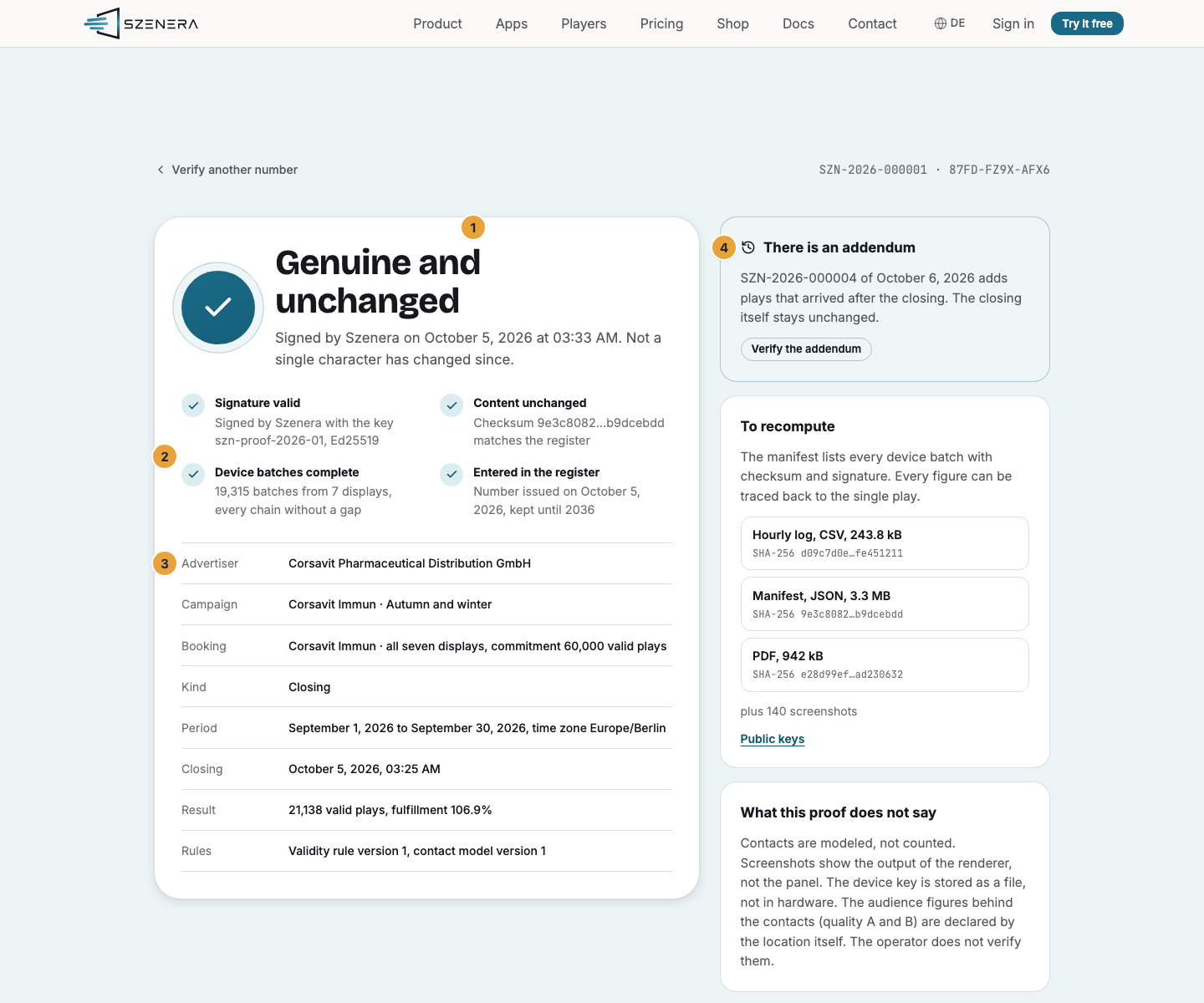
1 Result · 2 The four checks · 3 Details of the proof · 4 There is an addendum
Check the result
| Result | Meaning |
|---|---|
| Genuine and unchanged | Signed by Szenera on the stated day, and not a single character has changed since. For a proof without a signature, the text reads Issued without a signature. |
| The proof is not consistent in itself | Number and check code or file match, but the signature or the content stored at Szenera does not match the entry in the register. Do not rely on this proof, and contact Szenera. |
| Not the signed version | The number is in the register, but the check code does not match it, or the file differs from the signed version. Request the proof again. |
| We do not know this number | The number is not in the register. |
Genuine and unchanged and The proof is not consistent in itself both show four checks. With the second result, they can read Signature invalid or Content changed instead:
- Signature valid: with which key and which algorithm the proof was signed.
- Content unchanged: The checksum matches the register.
- Device batches complete: how many batches from how many displays the proof was built from, every chain without a gap. Device batches with gaps means a device restarted in between or batches are missing. The figures still hold, and the gap is stated.
- Entered in the register: when the number was issued and until which year the proof is kept.
Below the checks, the verification page names the advertiser, ad campaign, booking, kind, period, closing, result, and the versions of the validity rule and the contact model. If a closing has an addendum, Verify the addendum leads there, and on an addendum, Verify the closing leads back. The card To recompute lists the files of the proof with their checksums, and What this proof does not say lists its limits.
Recompute by hand
Anyone who does not want to trust the verification page can check with what is inside the PDF. The PDF carries three files as attachments: the manifest SZN-….manifest.json, the signature SZN-….manifest.sig, and the hourly log SZN-….csv. Every PDF reader with an attachments pane shows them, and on the command line, pdfdetach -saveall SZN-….pdf extracts them.
-
Get the public key. On the verification page, every key appears under Public keys with Algorithm, Fingerprint, Valid since, and Replaced on. Show key displays it as text, which you save as
szenera.pem. The manifest names the key that signed in its fieldkeyId. -
Check the signature. The signature is Ed25519 over the bytes of the manifest, Base64-encoded:
base64 -d SZN-2026-000398.manifest.sig > manifest.sig.bin
openssl pkeyutl -verify -pubin -inkey szenera.pem -rawin \
  -in SZN-2026-000398.manifest.json -sigfile manifest.sig.bin
Signature Verified Successfullymeans the manifest comes from Szenera and is unchanged. Older versions of OpenSSL and the LibreSSL on some systems do not know-rawin. In that case, the command reports an error instead of a result. Check the file exactly as it comes out of the PDF, without saving it again in an editor: Even one reformatted space breaks the signature. -
Check the figures. The manifest carries the checksum of the figures in the field
dataSha256. It covers all lines of the hourly log that do not start with#, that is, the header line and the data lines:grep -v '^#' SZN-2026-000398.csv | shasum -a 256If the value matches
dataSha256, the log contains the same figures that were signed. The same value appears, shortened, in the footer of every page. -
Check the remaining files. Under
files, the manifest lists every other file with its checksum, for example the screenshots of the sample.shasum -a 256 <Datei>must give the same value.
The manifest also names the device batches the proof is based on, and a joint checksum over them (batchMerkleRoot). It makes later changes to the reported data visible, but it can only be checked against the batches together with Szenera. The Check code is derived from the checksum of the manifest and therefore fits only exactly this signed version.
If something goes wrong
| Symptom | Meaning | Solution |
|---|---|---|
| The check code does not match the number | A typo, or the code of a different proof. | Read both from the footer of the same page. The check code does not use the letters O, I, L, and U: What looks like an O is a zero. |
| The file carries the number …, but its content differs from the closing. | The PDF was changed after it was signed. Even saving it again from an editing program is enough. | Request the proof again, or check with the number and check code. |
| Not signed | The proof was issued without a signature. The checksums hold, but the origin is not proven. | Ask whoever gave you the proof. |
Signature Verification Failure when recomputing |
The manifest was changed, or it is the wrong key. | Extract the manifest from the PDF again, and use the key with the keyId of the manifest. |
| The checksum of the figures differs. | The log was edited, or lines are missing. | Extract the log from the PDF again. |
| After many attempts, the verification page stops answering. | The verification page limits attempts per internet connection. | Wait a few minutes. |
Related
Found what you needed? Then carry on in the portal — or set up an organization first.
Go to the portalTry it free