Analyze content: when, where, and on which days
When a scene, a playlist, or a media item ran, on which displays, and on which days.
3 minute readAnalyticsUpdated: 10/25/2026
Before you start
- For
- Everyone who wants to assess a piece of their own content: Did the promotion run at the right time of day, and did it run in the right place? A club uses this to check whether the summer party announcement reached the evening hours.
- Prerequisite
- The permission Run ad hoc queries, held by Owner and Manager by default. For the details of a content item, a package with history: Without a history commitment, it says History from the Pro package there.
- Where in the portal
- Analytics › Content tab
At the end, you know for a single content item when it ran and where: a profile over weekday and hour, the distribution across displays or locations, and the airtime per day.
The tab shows your own content, that is, scenes, playlists, and media items. What ran in ad breaks is in the Ad campaigns tab: Analyze ad campaigns.
Steps
- Open Analytics and switch to the Content tab.
- Set the Period at the top. It applies to the whole tab.
- Choose the type: Scenes, Playlists, or Media.
- On the left, read the ranking By airtime. Each row states the airtime, its share of the airtime of own content, the number of plays, and on how many displays at how many locations the content ran.
- Choose a content item. On the right, you see when, where, and on which days it ran:
- The numbers Airtime, Plays with “… of them valid”, and Displays “at … locations”.
- When it ran: the airtime per weekday and hour, all days of the period combined. The stronger a cell, the longer the content ran at that hour, and the key runs from little to a lot.
- Where it ran: the airtime Per display or Per location.
- On which days: the airtime per day as columns.
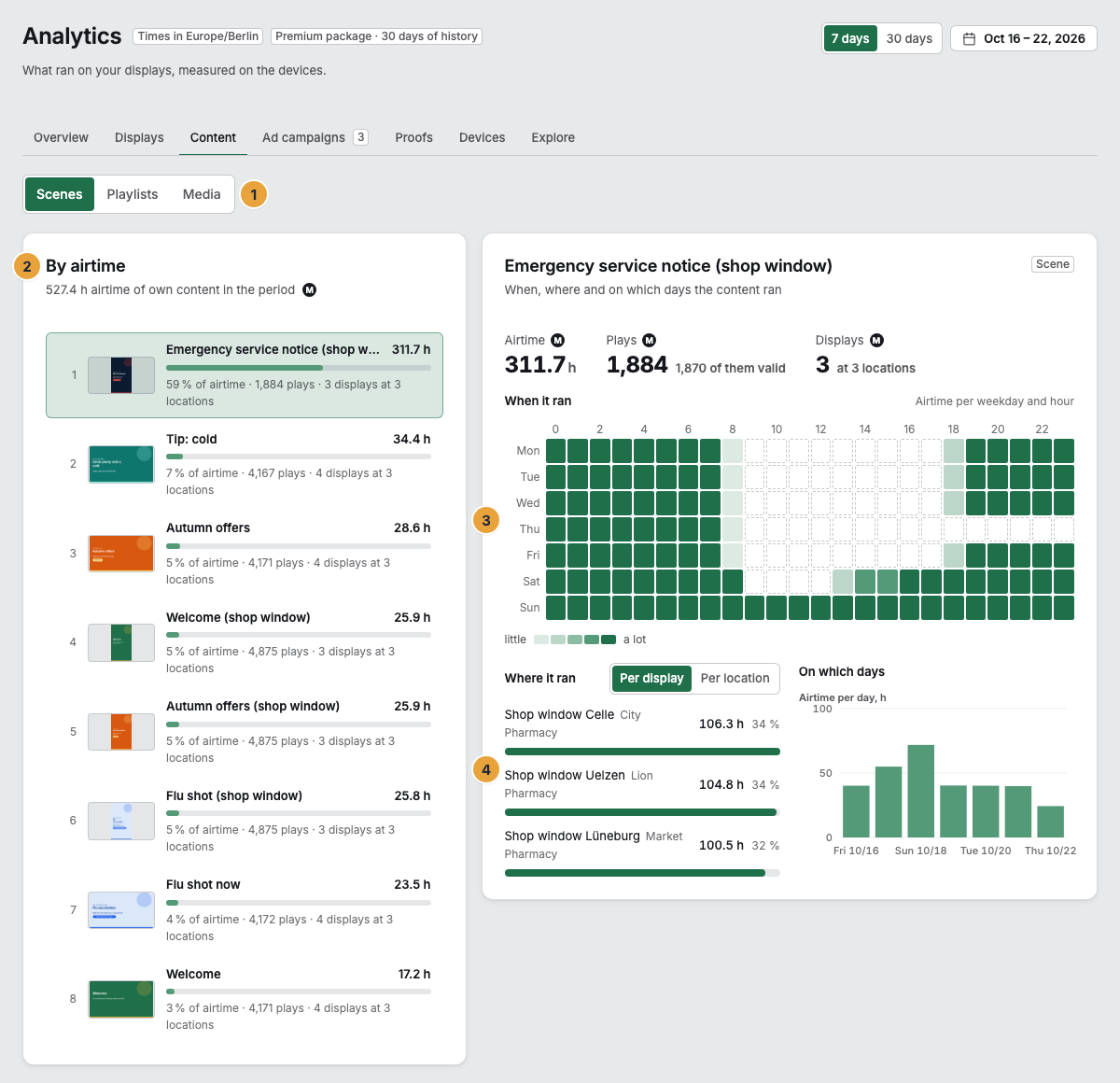
1 Scenes, playlists, media · 2 Ranking By airtime · 3 When it ran · 4 Where it ran
Options
Scenes, playlists, and media items are three rankings and not a common one. A playlist contains scenes and media items, and the same second would appear twice in a common list. Therefore, do not add the three types together.
The chosen content item is in the address. A link you pass on opens exactly that item with the same period.
Without history in the package, the ranking of the last seven days stays visible. In place of the single content item, the offer of the next package appears.
Check the result
The sum of the airtime in Where it ran equals the airtime of the content item. Only the time of valid plays is counted: If a content item ran while the TV was off or under a menu, that time does not count.
If something goes wrong
| Symptom | Meaning | Solution |
|---|---|---|
| None of this content ran in this period | Nothing of the chosen type ran in the period. | Choose a different type or a longer period. |
| A content item is missing from the ranking. | It did not run in the period, or none of its plays was valid. | Check the day of a display on which it should have run: Check a display’s day. |
| History from the Pro package | Your package includes no history. | Compare packages. |
| The airtime of a content item is smaller than its running time in the program. | Some of the plays were invalid, for example with panel off or a playback error. | The reasons are in the day of the display and in the analysis as the Failure rate per reason. |
Related
Found what you needed? Then carry on in the portal — or set up an organization first.
Go to the portalTry it free