The “Finish setup” card
The seven steps on the dashboard, where each one leads, why some are missing, and how to skip steps.
3 minute readGetting startedUpdated: 10/25/2026
On this page
Before you start
- For
- everyone setting up a freshly created organization
- Prerequisite
- an account with the permissions for the task in question. The card shows only what you may do yourself.
- Where in the portal
- Dashboard › Finish setup card
After registration, the dashboard shows the Finish setup card. It collects seven tasks that make a new account ready for operation and takes you to the right place with one click.
Steps
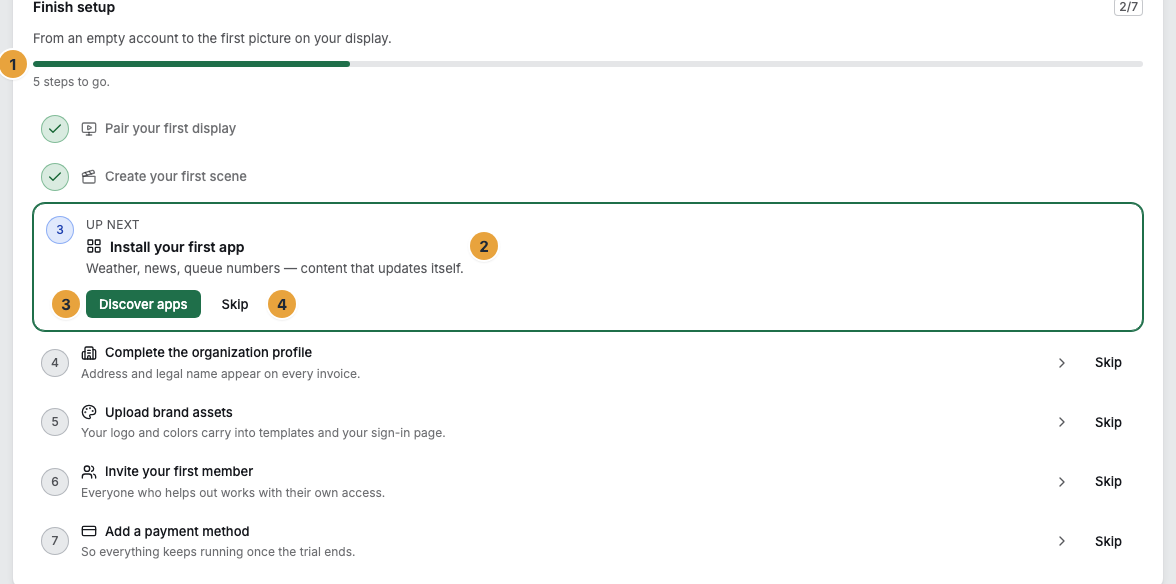
- Open the Dashboard. Under the title is the line From an empty account to the first picture on your display., and below it the progress, such as 2 of 7 steps done.
- Under Up next is the recommended step, with a sentence on why it matters, such as “The scene is what appears on the display.” The button next to it takes you straight to the responsible area.
- Take what you do not need off the list with Skip. A skipped step counts as done and can be caught up later in the normal way.
Options
The seven steps at a glance
| Step | Leads to | Read more |
|---|---|---|
| Complete the organization profile | Settings › Organization › Company details | Master data |
| Upload brand assets | Settings › Organization › Brand | Brand |
| Invite your first member | Team | Invite members |
| Add a payment method | Billing | Add a payment method |
| Install your first app | Apps | Install an app |
| Create your first scene | Scenes | Create a scene |
| Pair your first display | Displays › Pair display | Pair a display |
Address and legal name appear on every invoice. Your logo and colors carry into templates and your sign-in page. The payment method keeps everything running after the trial. Without a paired display, every program has no surface.
Why steps can be missing
The card shows only tasks you may do yourself. If you lack a permission, the step is not in the list at all, but it still counts in the progress. A member without team and billing permissions therefore sees fewer than seven rows, and the counter advances by different amounts for the same organization.
Check the result
Each completed or skipped step disappears from the list, and the counter rises. When all steps are gone, or none is left for your account, the whole card disappears from the dashboard. It is an aid and never blocks anything: Everything in it can also be reached through the sidebar.
If something goes wrong
| Symptom | Meaning | Solution |
|---|---|---|
| The card is missing entirely | All steps are done or skipped, or none is left for your role. | Nothing to do. The areas remain in the sidebar. |
| Fewer than seven steps | You lack the permission for the missing tasks. | A person with the Owner role takes them over or grants the permission. |
| “The step could not be skipped.” | The change did not go through. | Click Skip again. |
Related
- Your first display in 15 minutes — the same tasks as one continuous path.
- Invite members — roles and invitations in detail.
- Add a payment method — before the trial ends.
Found what you needed? Then carry on in the portal — or set up an organization first.
Go to the portalTry it free