Read the dashboard
Status report, live stage, figures of the week, availability against planned time for the last seven days, most played, contract card, quick actions, and notices.
8 minute readGetting startedUpdated: 10/25/2026
On this page
Before you start
- For
- everyone who opens the portal, from the first day
- Prerequisite
- access to your organization. Individual blocks require a permission or a larger package.
- Where in the portal
- Dashboard
The dashboard is the home page of the portal. At a glance, it answers whether your displays are running, what is currently showing on them, and what has played in recent days.
Read the page from top to bottom: first the figures of the week, then the status report (three lines at most), then the stage (what is playing now) and the trends of the last seven days (what happened). Each block has its own section below. If one is missing for you, the section names the reason.
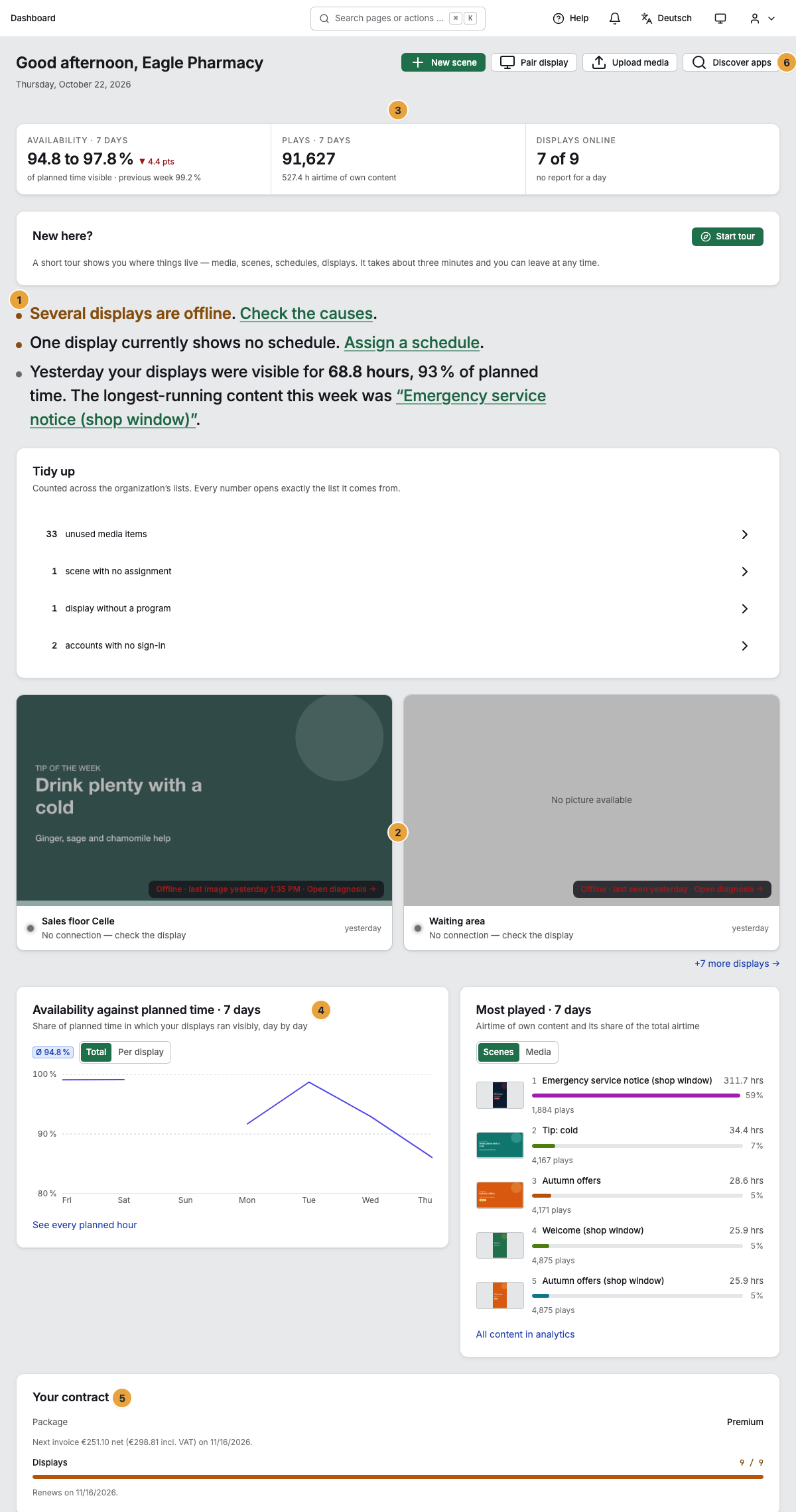
1 Status report · 2 Stage · 3 Figures of the week · 4 Availability against planned time · 5 Your contract · 6 Quick actions
The status report “Status of your displays”
At the top of the page is the greeting (Good morning, Good afternoon, or Good evening with your name). Below the figures of the week comes the status report: three lines at most, ordered by rank, each with a dot in one of four tones, a statement, and exactly one path.
| Tone | What it indicates |
|---|---|
| All good | Nothing is pending. |
| Attention | Something needs a look from you. |
| Fault | Something is not running. |
| Note | A plain notice with no need for action. |
These sentences can appear there. The underlined part is a link to the responsible area in each case.
- “Your storefront is still empty.” with the link Pair your first display and the note that this takes a few minutes.
- “All displays are running.” (for a single one: “Your display is running.”)
- “Your displays are offline. Check the causes.”
- “Several displays are offline. Check the causes.”
- “‘Reception’ has been offline for 20 minutes. Check the cause.”
- “2 displays currently show no schedule. Assign a schedule.”
- “Yesterday your displays were visible for 41 hours, 96% of planned time. The longest-running content this week was ‘Weekly offer’.” The scene named is the one that also leads under Most played.
The stage “Your displays, live”
Below it is one tile per display, with the last reported picture and a line underneath. If not all displays fit in the row, +3 more displays → leads to the fleet.
| What is on the tile | What it means |
|---|---|
| Now: “Weekly offer” | The name of the scene that is playing right now. |
| Now: playlist | A playlist is playing, and the individual entries rotate. |
| 12 min left | The time remaining until the next content takes its turn. |
| No program — assign one now | Nothing is assigned to the display. The text is the way to the assignment. |
| No connection — check the display | The display does not report in. The picture may keep playing anyway. |
| Offline · last image yesterday 4:40 PM | The display does not report in. The tile shows the last picture the display sent, dimmed, along with when it was taken. |
| Offline · last seen 2 hours ago | When the display last reported in, if it has never sent a picture. |
| Open diagnosis → | Leads to the display’s record, where the cause is stated. |
| No picture available / No picture yet | The display has never sent a picture, usually a freshly paired one. |
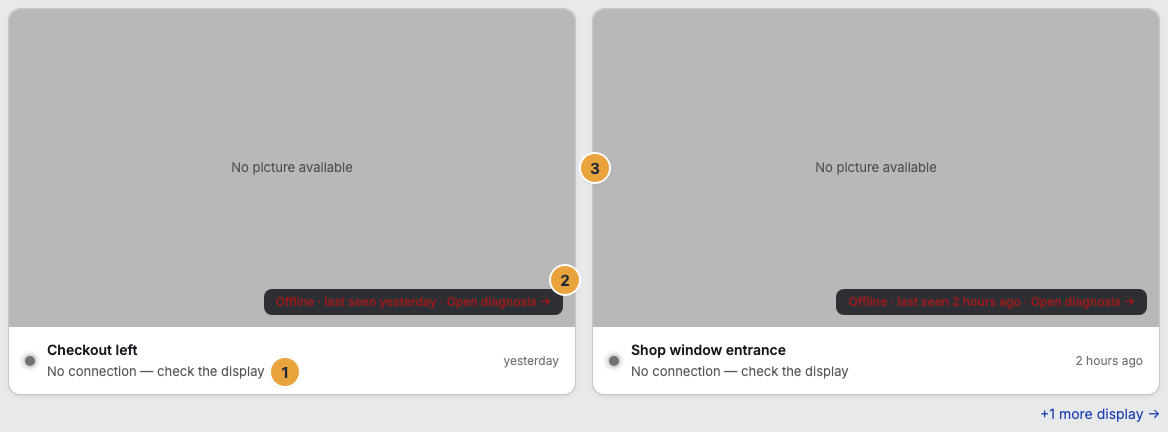
Status values of a display
The first three values depend solely on the age of the last check-in. A device checks in every 30 seconds. The tiles in the fleet carry the same three. The other two are called Not connected there, and Suspended or Frozen.
| Status | What it means |
|---|---|
| online | The last check-in is younger than 60 seconds. |
| stale | The last check-in is 60 seconds to 5 minutes old, often a brief dropout in the network. |
| offline | The last check-in is older than 5 minutes. The display may keep playing the last picture it loaded. |
| not connected | The web display is created, but no browser has opened its address yet. |
| suspended | The display does not play because your organization is suspended or more displays are paired than booked. |
Figures of the week
Three tiles summarize the last seven days up to today, the same window the analytics overview opens with. The same figure therefore appears in both places.
| Tile | What it counts | Footer |
|---|---|---|
| Displays online | “3 of 4” | “all reporting”, “no report yet”, or “no report for 2 hours” |
| Availability · 7 days | What share of planned time was visible. If gaps are still open, a range “… to …” appears. | “of planned time visible · previous week …” with the change in points |
| Plays · 7 days | How often content was shown, each play measured individually on the display. | “… h airtime of own content” |
Availability and most played
Two blocks show the same seven days up to today. On the left is Availability against planned time · 7 days: the share of planned time in which your displays ran visibly, day by day, with the choice Total or Per display and the average as Ø …. A day without planned time appears as no planned time. Today is not over yet and can still grow. See every planned hour leads to the Displays tab of analytics. On the right is Most played · 7 days: the airtime of own content and its share, with the tabs Scenes and Media and the path All content in analytics.
The status report adds a sentence such as “Yesterday your displays were visible for 41 hours, 96% of planned time.” What planned time and airtime count exactly is explained in What does analytics measure, and what does it not?.
| Message | What it says |
|---|---|
| “No planned time measured yet.” | Nothing has run on a program yet, or the displays do not report yet. “As soon as your displays run on a program, the trend fills up.” |
| “As soon as scenes run, this shows what was visible the longest.” | No scene of your own has run in the seven days. Under Media, the same sentence appears for media. |
| “The values could not be loaded.” | A temporary error. Try again asks once more. |
Analytics shows the last seven days even without history in your package. How far back you can look beyond that depends on the package: Packages, trial, and booked seats.
Your contract and the trial
The Your contract card names the Package and the Displays, plus “Renews on October 1, 2026.” and “Next invoice €39.80 net (€47.36 incl. VAT) on October 1, 2026.” If a change is pending, it adds “Change to Premium scheduled for October 1, 2026.”
During the trial, the same card carries the heading Trial and below it 21 days left in your free trial along with the indicator “21 of 30 days left”. In addition, there are three commitments and a button:
- “Your first display with the full Pro feature set — free until the trial ends.”
- “Ends on its own — no cancellation, no notice period.”
- “We only charge once the trial ends — and only with a payment method on file.”
- Add payment method — the way into Billing.
Quick actions and notices
Four buttons lead to the most frequent tasks: New scene, Pair display, Upload media, and Discover apps.
The Notices sheet collects what is currently pending, each entry with View. If nothing is pending, it says “Nothing pending right now.” If there are several, “2 more notices” summarizes the rest. In the header of the portal, the counter Trial · 21 days left runs along during the trial.
As long as setup is not finished, the dashboard also shows the Finish setup card. It disappears on its own as soon as all steps are done or skipped.
Related
Found what you needed? Then carry on in the portal — or set up an organization first.
Go to the portalTry it free