When getting started goes wrong
No code email, no code on the display, code rejected, placeholder instead of content, old version, gray display, grayed-out button: the first day.
5 minute readGetting startedUpdated: 10/25/2026
On this page
Before you start
- For
- everyone who is setting up their first display right now
- Prerequisite
- access to the portal and, for pairing, a device that is set up
- Where in the portal
- Dashboard
On the first day, something usually goes wrong in one of four places: The display shows the wrong thing, no code appears on it, the portal does not accept the code, or access gets stuck. The four sections below follow this order, the most frequent case first.
The display does not show what it should
| Symptom | Meaning | Solution |
|---|---|---|
| The display shows only your brand’s placeholder. The tile says No program — assign one now. | Nothing is assigned to the display. | Assign a program, or directly a scene, a playlist, or a media item: Assign a program to a display. |
| The display shows an older version of your scene. | The latest state is still a draft. A draft runs on no display. | Publish the scene again: Save, publish, versions, and conflicts. |
| The new scene does not appear on any display. | One of three things is missing: It is not published, it is not assigned to a display, or its program entry lies outside its time. | Check the three points in this order: Create, edit, pause, or delete a program entry. |
| The display is gray on the stage, and the status is offline. | The device has no network, is switched off, or is not paired yet. The last check-in is older than five minutes. | Check the network at the device and finish pairing: When a display does not show what it should. |
No pairing code on the display
| Symptom | Meaning | Solution |
|---|---|---|
| The display stays dark. | No power, a loose cable, or the wrong input selected on the display. | Check the power supply, HDMI cable, and input selection: Unpack and connect. |
| A setup card with a QR code appears instead of the code. | The device finds no network and has opened the setup hotspot. | Set up the Wi-Fi through the card. The device then switches to normal operation on its own: Connect to the network: cable, Wi-Fi, company network, time. |
| The tiles show dots instead of characters. | The pairing session has not been created yet. | Wait briefly, then the code appears: The pairing screen. |
The portal does not accept the code
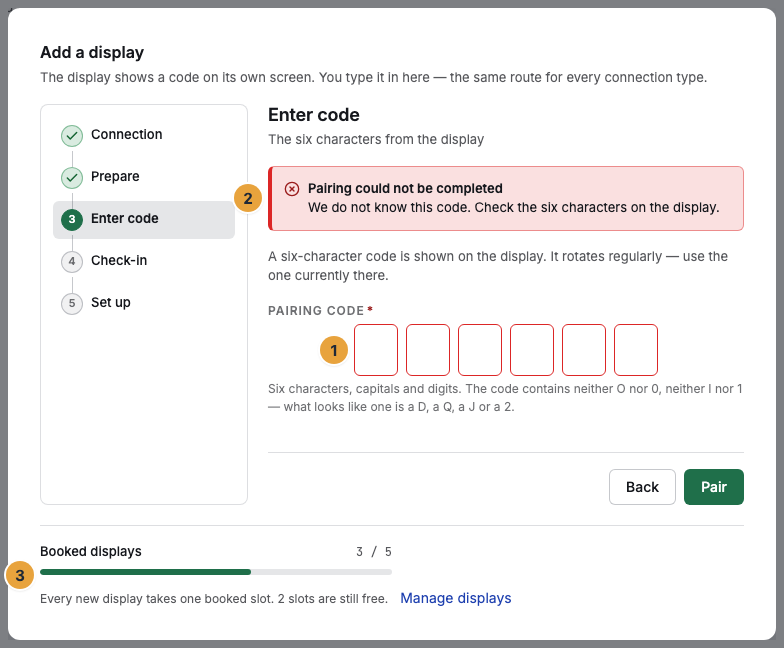
The code is six characters long and consists of digits and capital letters. The easily confused ones are missing: The zero and the letter O do not occur, nor do the one and the letter I.
| Symptom | Meaning | Solution |
|---|---|---|
| “We do not know this code. Check the six characters on the display.” | Mistyped, or a character was mixed up. | Neither 0/O nor 1/I occur in the code. What looks like them is a different character. Read it again: Pair a display. |
| “The code has expired — please enter the one currently displayed.” | The code changes every 60 seconds. A superseded one stays valid for five more minutes. | Use the code that is currently on the display: Pair a display. |
| “This device has already been paired.” | The device already belongs to an organization. | In the previous organization, choose Re-pair …, then pair here: Device lifecycle. |
| “Your contract does not cover more displays.” or “Every booked display is paired.” | Every display occupies a booked seat, and all are taken. | In the dialog, choose Book another display, and the pairing continues: Change your contract: displays, package, add-ons. |
Access, registration, and permissions
| Symptom | Meaning | Solution |
|---|---|---|
| No email with the confirmation code arrives during registration. | The portal always confirms the send in the same way, even for a mistyped address and for domains that accept no mail. | Check the spam folder and the spelling, then Send a new code (disabled for one minute). If that does not help, try another business address: Register an organization. |
| After a reload, the registration is back at Your access. | The password is deliberately not cached. | Enter the display name and password again. The other details are still there: Register an organization. |
| “This organization only allows sign-in through the company account.” | Your organization enforces company sign-in. Password and magic link are blocked for your address. | Sign in through Sign in with company account: Sign in: password, sign-in link, company account. |
| A button is grayed out. | The matching permission is missing, not the package. | Read the tooltip and ask an owner for the permission: No access, a grayed-out button, a locked area. |
| An area is missing in the sidebar, or a direct link ends on “No access to ‘Billing’”. | Your account lacks the permission for this area. | Have the role changed: No access, a grayed-out button, a locked area. |
| Sign-in reports “Too many attempts — please wait a moment.” | Too many failed sign-ins in a short time. | Wait briefly and sign in again: Sign-in, password, and access. |
Related
Found what you needed? Then carry on in the portal — or set up an organization first.
Go to the portalTry it free