Assign a program to a display
A new display shows the placeholder, or a display should show something different from now on.
5 minute readDisplaysUpdated: 10/25/2026
Before you start
- For
- anyone who decides which content runs on a display
- Prerequisite
- the permission to edit programs (Manager or Owner role) and content that has been created
- Where in the portal
- Displays › display › Playback tab › Assign program
Afterwards, the display knows what to show: a program on a weekly plan — or a scene, a playlist, or a media item continuously.
Steps
- Under Displays, open the display and switch to the Playback tab. At the top is the Program card. It is quicker to use Assign program in the header of the record: It jumps to the same tab and opens the selection right away.
- If nothing is assigned yet, read No program assigned with the sentence The device shows the placeholder screen until you assign something to it. Click Assign program.
- In the What should run on this device? dialog, choose the tab that fits your purpose. Above the tabs it says: A whole program is the usual choice. A single scene, playlist or media file runs continuously.
- Find the entry with Search … and click it. The confirmation reads Program assigned.
| Tab | What follows |
|---|---|
| Programs | Follows a weekly plan: program entries at their times, the base program otherwise. |
| Scenes | Runs continuously — no weekly plan, no changes. |
| Playlists | Runs continuously as a loop over all playlist items. |
| Media | Runs continuously as an endless loop of a single image or video. |
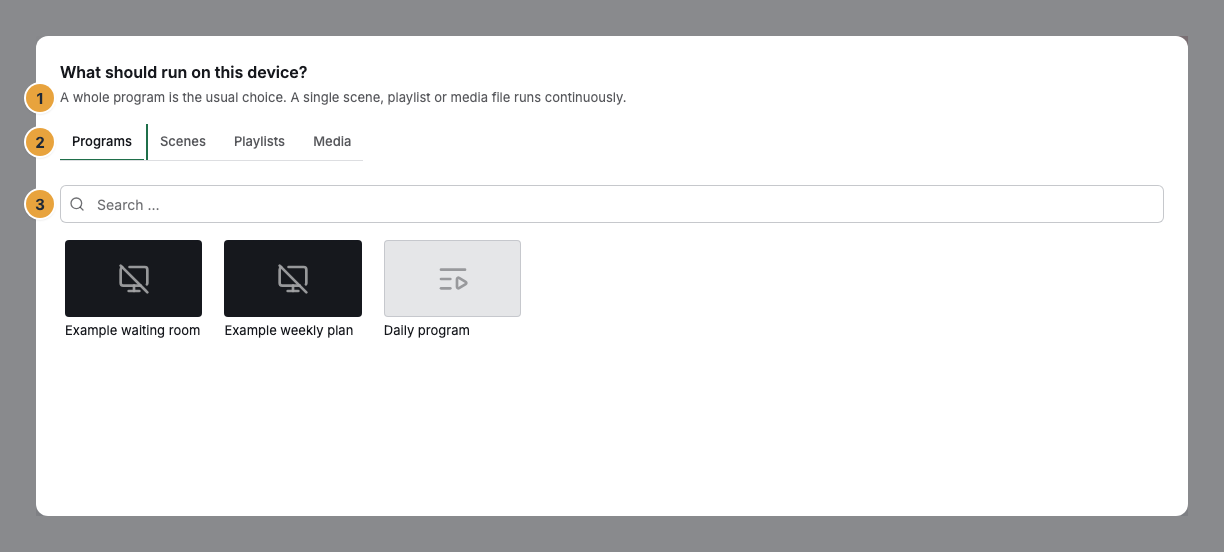
1 Explanatory sentence above the tabs · 2 The four tabs · 3 Search field
A display carries exactly one assignment. If two displays should show different things, they get two programs. If they should show the same thing, both get the same program.
Options
Format filter. The Scenes tab initially shows only what fits the format of this panel. Above the list it then says N scenes do not fit the screen. The Show all formats switch adds them, marked with Does not fit the screen format — it would play with bars. If the device has never reported its format, nothing is filtered out, and the selection says so.
Change and remove. If something is assigned, the card shows the preview, the type as a badge, and the name as a link to its page. Change opens the same selection. Remove assignment asks Really remove the assignment? After Remove, the portal reports Assignment removed, and the display shows the placeholder again.
Shortcuts. When pairing, the Set up step offers the same choice. From the playlist editor, Add to program leads into a program, and from the menu of a scene, Schedule.
Check the result
The Program card now names the type and the name of the content, and the Playback timeline below it shows the resulting day. On the Overview tab, Now playing changes as soon as the device has loaded. In the program, the Runs on card lists all displays that play it.
If the assigned content contains an app that does not run on the device type of this display, the card says Not everything runs on this display, for example with “According to its publisher, Pharmacies on duty does not run on LG webOS. The assignment applies anyway.” The note stays on the card until you leave the page or assign again. What an app runs on is listed in its entry in the store under Runs on.
If something goes wrong
| Symptom | Meaning | Solution |
|---|---|---|
| Instead of the card, it says Part of a video wall | What the display shows is decided by the video wall — a separate assignment would tear the surface apart. | Assign there via Go to the video wall, or dissolve the video wall. |
| The display shows the placeholder | Nothing is assigned to the display. | Assign a program as described above. |
| A scene is missing in the selection | It does not fit the format of the panel. | Switch on Show all formats — it then plays with bars. |
| Nothing found | Nothing of this kind has been created yet, or the search matches nothing. | Shorten the search term or create the content first. |
| Assigning failed | The change did not go through. | Try again. If it persists, check the permissions. |
| The change is missing on the timeline | The calculation is cached. | Refresh below the timeline. On the device, Refresh content helps. |
| Not everything runs on this display | An app in the content does not support the device type of the display, according to its publisher. | Assign content without the app to this display, or build the scene for this display without the app. |
If a button is grayed out, you lack the permission to edit programs.
Related
- Create a program — build the weekly plan that you assign here.
- Override — lay something else over it for a while.
- Create a video wall — play several displays as one surface.
Found what you needed? Then carry on in the portal — or set up an organization first.
Go to the portalTry it free