Check what a display is showing now and will show today
You want to know what a display is showing at this moment and what is planned for the rest of the day.
6 minute readDisplaysUpdated: 10/25/2026
On this page
Before you start
- For
- anyone who has to answer a question from operations without standing on site
- Prerequisite
- an account in your organization. The permission to read is enough, changing is not necessary.
- Where in the portal
- Displays › display › Overview and Playback tabs
Afterwards, you know which content is running on a display, where it comes from, and what the rest of the day brings.
Steps
What is running right now
- Under Displays, open the display. The record opens on the Overview tab.
- Read the Now playing card. It names the content as Scene or Playlist with a link to its page and, in the From program line, the program behind it. If no program is involved, it says Assigned directly. Runs until shows the remaining time, and Afterwards the next section.
- Check the header of the card. The Override badge means: Someone has laid something over it by hand. Above the preview is Picture from the device · … with the time of the latest capture. The device takes pictures by itself, every five minutes and after every content change.
Instead of content, it says Nothing assigned — the device shows the placeholder screen. or Broadcast pause — deliberately nothing is playing.
What the day brings
- Switch to the Playback tab. From top to bottom, you find three areas: the Program card with the assignment, the Show something else now card for the manual intervention, and the Playback timeline as the result of both. If an assignment is missing, the Program card carries the sentence No program assigned. Scroll to the timeline.
- Read the day bar. It is divided into Playing, Broadcast pause, and Nothing scheduled. The badge says where the day comes from: Calculated for today and the coming days, Recorded for completed ones.
- Click a section. Below it appear Period, Content, for a playlist the Rotation with the number of items and the cycle duration, and the Transition. If the section comes from a program, Open program is added with the note from a program entry or from the base program. Esc closes the details.
- With Previous day and Next day, you page through day by day.
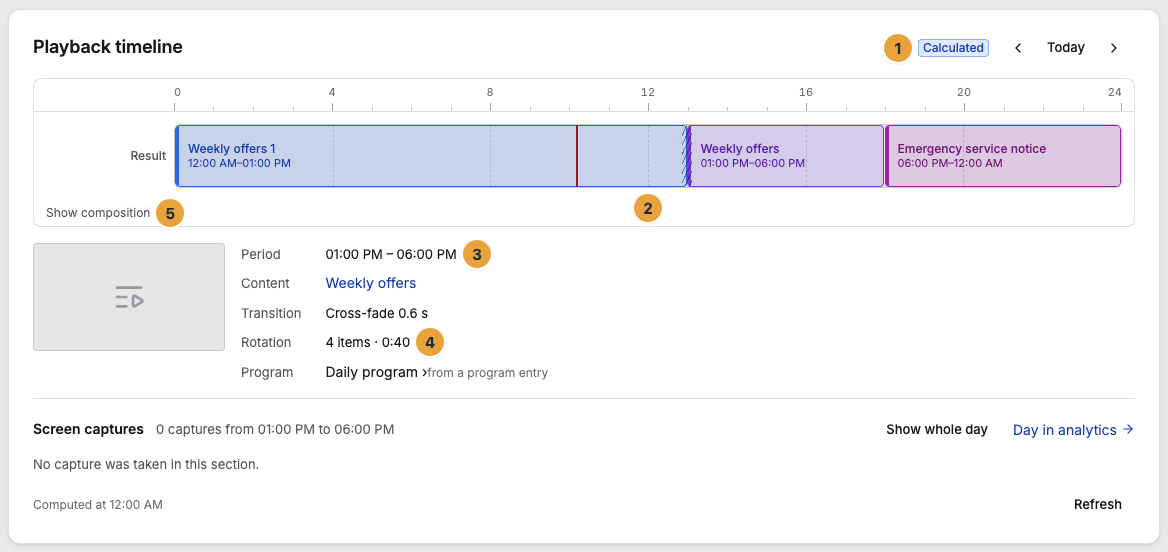
1 Calculated badge · 2 Day bar · 3 Period of the section · 4 Its rotation · 5 Show composition — The section from 08:00 to 18:30 is clicked. Its details are shown below.
The screenshots of the day
Below the timeline is the filmstrip Screen captures: what the display showed on that day, one capture every five minutes and at every change. The timeline says what was supposed to run, the strip what was visible.
- Read the strip from left to right. Today, it sits at the latest picture, and new captures slide in without reloading. Identical pictures in a row appear as a single capture.
- If you click a section of the timeline, the strip shows only its captures, for example “4 captures from 10:00 AM to 10:20 AM”. Show whole day clears the choice.
- Click a capture to see it enlarged. Anyone who may read analytics also sees, next to it, what ran according to the measurement and what should have run according to the program.
- Day in analytics opens the same day in the Displays tab of analytics, with all tracks and plays: Check a display’s day.
How long captures are kept depends on the package: Starter one day, Pro seven, Premium thirty, and Enterprise ninety days. Below the strip it says so: “Your package keeps captures for … days.” A capture shows the output of the display software, not the panel: Videos that the device plays on a layer of its own are missing from it.
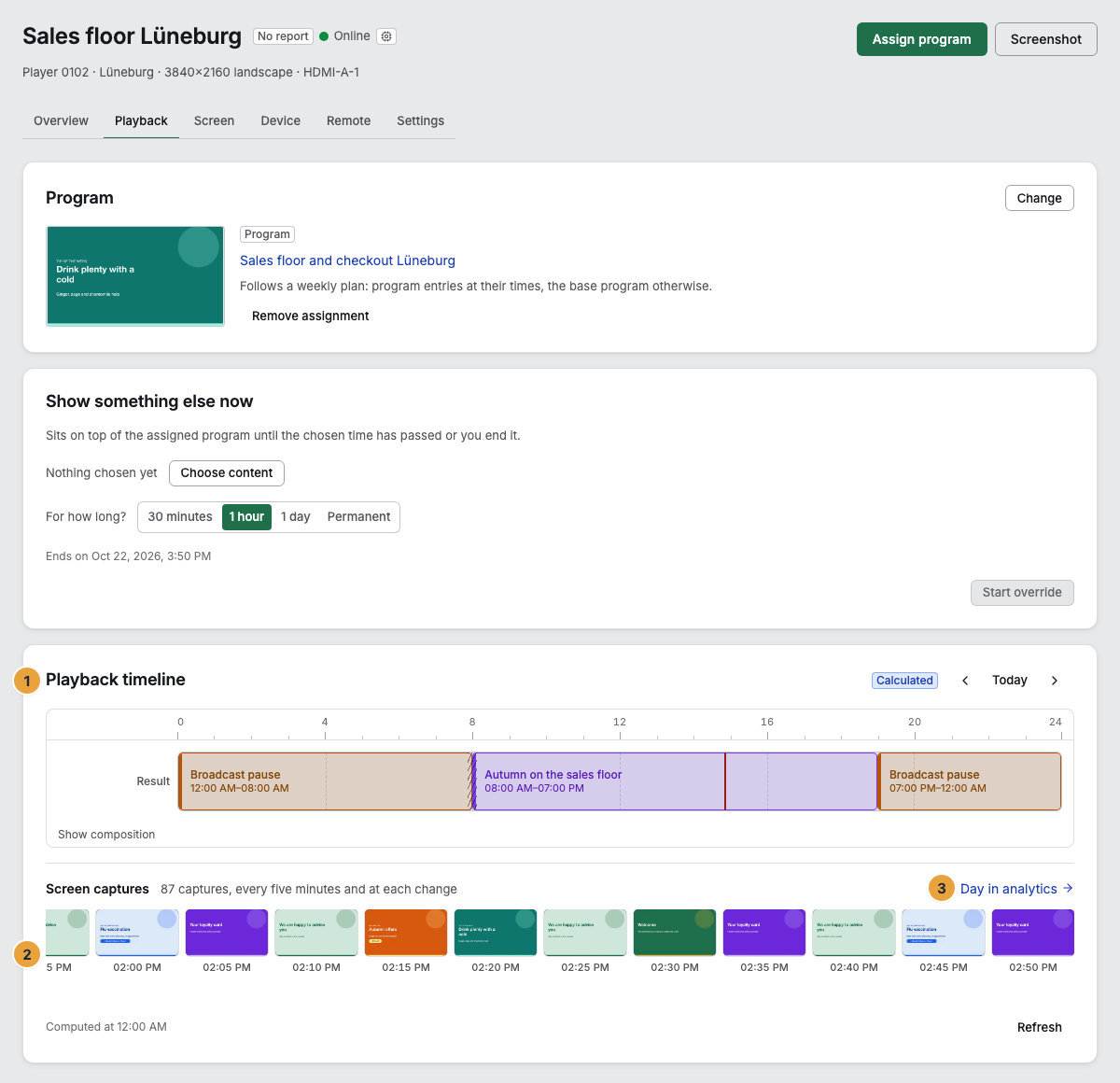
1 Playback timeline · 2 Filmstrip · 3 Day in analytics
Options
Show something else now lays content over the assigned program, “until the chosen time has passed or you end it”. Under Choose content and For how long?, you set content and duration: 30 minutes, 1 hour, 1 day, or Permanent. Start override sets it in motion. Afterwards the card is called Override is running and names Runs until …, and with an open duration it says “Permanent — until you end it.” End override takes it back. How an override takes precedence over program entries is explained in Show something else now.
Show composition unfolds what the day is made of: the layers Override, Program entries, and Base program above the Result. Refresh recalculates.
How far back you can page depends on the package: Starter records nothing, Pro seven days, Premium thirty. The recording never reaches further than 90 days.
Below the overview is the excerpt Recently on this surface: the latest messages on playback and content, for example Now showing “…”, Nothing scheduled — showing the fallback, or New content applied. The complete Operations log is kept at the machine: Full log on the device leads to the device record, where you filter with the chips by area (Playback, Content, Connection, System, Update, Remote support, On site) and by severity (Info, Warning, Error).
Check the result
The section that the timeline shows for now is the content from Now playing. The picture from the device confirms it.
If something goes wrong
| Symptom | Meaning | Solution |
|---|---|---|
| Nothing is resolved for this day. | No section results for the chosen day. | Check the assignment on the Playback tab. |
| Nothing was recorded for this day. | The day lies before the first recording. | Choose a more recent day. |
| The button for the previous day is disabled | The tooltip says why: Playback history starts with Pro without a history window, otherwise There is no recording further back — your package sets how far the window reaches. | Look at the package under Billing. |
| A change is missing on the timeline | The calculation is cached. | Click Refresh below the timeline. On the device, Refresh content helps. |
| The picture from the device is old | The device has reported nothing since the last capture, often because it is offline. | Check the status and request a new picture on the Remote tab. |
| “There is no capture for this day.” | The day lies before the retention period of your package, or the display uploaded nothing on that day. | Choose a more recent day. |
Related
- Check a display’s day — plan, panel, plays, and captures of a day on one axis.
- Remote maintenance — reload content and fetch a fresh screenshot.
- Read the weekly plan — why this entry applies at this hour.
Found what you needed? Then carry on in the portal — or set up an organization first.
Go to the portalTry it free