Read the weekly plan
You are looking at the weekly plan and want to know what the colors, the faded area, and the red line mean.
4 minute readProgramsUpdated: 10/25/2026
On this page
Before you start
- For
- Anyone who wants to check what a program provides and when.
- Prerequisite
- A created program. For reading, a look into the editor is enough.
- Where in the portal
- Programs › program › Weekly plan
The weekly plan in the program editor shows one week across a full 24 hours. This page explains what the colors, the pale area, and the red line mean, from top to bottom.
What the weekly plan shows — and what it does not
The weekly plan shows exactly one program: no device filter, no content from elsewhere. What a single display makes of it is not here but in its record — see Check what a display is showing now and will show today.
The elements in the grid
| Element | What it means |
|---|---|
| A full 24 hours per day column | No cropped section, no hidden blocks |
| Dashed grid | Orientation in 3-hour steps |
| Red line | “now” — visible only in the current week |
| Pale area in the background | The base program. It stretches across every day, is not a program entry, and therefore cannot be clicked |
| Colored block | A program entry. The color follows the kind of its content. Scene, playlist, media file, and off air each carry a tone of their own, and the same color means the same content. |
| Colorless block with the Paused badge | A paused entry. It lies beneath the active entries and does not run |
| Layered blocks | Two entries overlap. The winning one lies almost fully over the other, of which a narrow strip stays visible. |
The same notes appear as a line below the grid: “Drag across an empty area to create a program entry · click a block to open it · dashed lines = 3-hour grid · red line = now · same color = same content · the pale area in the background is the base program”.
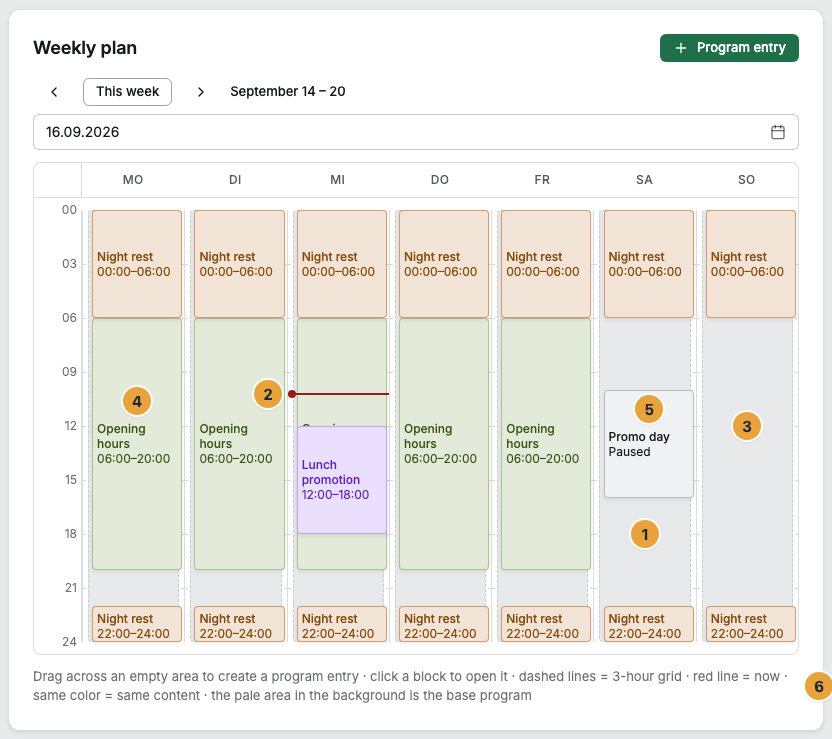
1 Dashed 3-hour grid · 2 Red now line · 3 Pale area of the base program · 4 Colored block of a program entry · 5 Block with the Paused badge · 6 Hint line below the grid
Navigation
| Control | What it does |
|---|---|
| Previous week / Next week (‹ ›) | Moves one week at a time |
| This week | Jumps back to the present |
| Jump to date | Goes to any week |
| Previous day / Next day / Today | On the phone: the weekly plan becomes a day view, one day per view |
The day view carries a note of its own: one day per view, the arrows switch the day, tapping a section opens the program entry. Red line, same color, and pale area mean the same as in the week view. You create new entries through Program entry.
What you can do in the grid
| Gesture | Effect |
|---|---|
| Dragging across an empty area | Creates a program entry, with the weekday and time window of the dragged area |
| Click on a block | Opens the entry for editing |
| Click on the pale area | Nothing — you change the base program through its card |
The “On now” card
Next to the weekly plan, the On now card says what applies at this moment.
| Detail | What it says |
|---|---|
| Source | Base program or Program entry |
| Window | The span as “… to …”, and for a running window also “since …” and “until …” |
| around the clock | The content runs without a window end |
| Open entry | Jumps into the responsible program entry |
The numbers on a program
Two numbers say how full a program is and where it applies — but they appear in two places and are called differently there. On the card in the overview, there are N program entries and running on N displays. If nothing is assigned yet, it says not assigned to a display. In the editor, the list carries the heading N program entries, and next to the name is the badge Runs on N devices or Not assigned to any device yet. The list also shows what does not occur in the week currently shown at all: a one-off appointment next month, a paused entry. One-off appointments come first, then the recurring ones by start time.
Related
Found what you needed? Then carry on in the portal — or set up an organization first.
Go to the portalTry it free