Manage playlists
The collection is getting hard to keep track of, or the portal will not let you delete a playlist.
5 minute readProgramsUpdated: 10/25/2026
On this page
Before you start
- For
- Anyone who keeps the collection of playlists in order.
- Prerequisite
- Renaming needs the permission to edit playlists, duplicating the permission to create, and deleting the permission to delete — by default, the roles Owner and Manager have all three.
- Where in the portal
- Playlists
At the end, you find every playlist again, rename it, duplicate it as a starting point for the next promotion, and delete what nobody needs anymore. And you see in which programs a playlist is the base.
Steps
Find playlists
- Open Playlists. With View, you switch between Grid view and List view. The tile shows a live preview of the item that is currently playing.
- Search for the name in the Search playlists field.
- Filter by Source: All, Manual, Folder, or Tags.
- Under Sort, choose for example Recently updated, Name A–Z, or Extent (largest first).
- In the list view, Columns shows or hides the columns Source, Extent, As base, and Changed. The Playlist column always stays visible. Load more loads further entries.
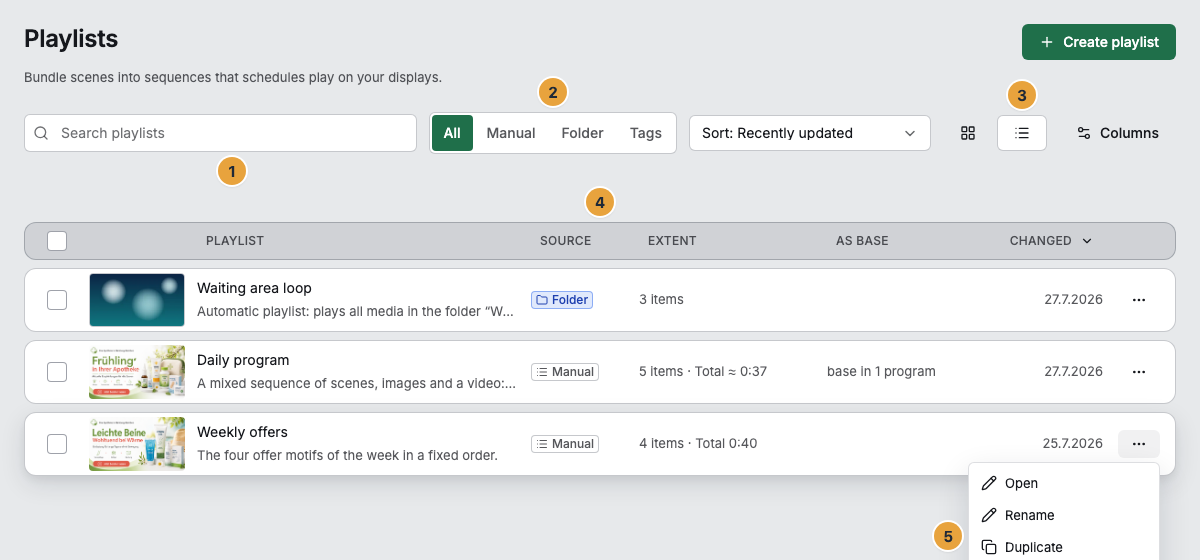
1 Search field · 2 Source filter · 3 View switch · 4 Column row · 5 Row menu
Rename and duplicate
- Open the menu on the entry. It offers Open, Rename, Duplicate, and Delete. A right-click on a tile or row opens the same menu.
- Rename opens the Rename playlist dialog. Enter 1 to 200 characters and confirm with Rename. The portal reports Playlist renamed.
- Duplicate immediately creates a copy named after the pattern “Name (copy)”. The portal reports Playlist duplicated. The copy is a convenient starting point for a variation.
Delete
- Delete in the menu opens the prompt Delete playlist permanently? with the name and the note: “The playlist will be removed permanently. It cannot be deleted while a program still uses it.” Delete confirms, and Cancel aborts.
- For a playlist from a cloud folder, it also says: “The folder sync and the imported media stay — only the playing sequence is deleted.”
- To delete several at once, check the boxes on the entries. The bar shows 3 selected and offers Select all, Clear selection, and Delete selection. The prompt then reads Delete 3 playlists?.
See where a playlist runs
- The As base column and the tile say Base in 2 programs — that is, the programs in which this playlist is the base program.
- Open the playlist: in its header, the same note leads to the Programs using this playlist as base popover with the names as links.
- Next to it, Add to program leads to the program picker, with this playlist preselected as the content.
This number deliberately does not say whether a playlist is also scheduled as an individual program entry or assigned directly to a display. The full picture comes from the program itself and the display's Playback tab. For deleting, all three uses count.
Check the result
- The new name appears in the list, and the Changed column carries the current time.
- A deleted playlist has disappeared from the list. The portal reports Playlist deleted.
- After a bulk delete, the message names the partial result, for example 4 deleted, 1 skipped (scheduled).
If something goes wrong
| Symptom | Meaning | Solution |
|---|---|---|
| An entry could not be deleted, and the message counts “skipped (scheduled)” | The playlist is still in use: as the base or as a program entry of a program, or assigned directly to a display | In the Programs using this playlist as base popover, open the programs and set a different base there, see Manage programs: rename, delete, check assignments. If the popover is empty, the playlist is scheduled as a program entry or assigned directly to a display: delete the entry in the program's Weekly plan, see Create, edit, pause, or delete a program entry, or assign something else at the display, see Assign a program to a display. |
| Rename, Duplicate, or Delete is missing from the menu | You lack the matching permission | Check the permissions, see Permissions by role and by area. |
| Rename failed or Duplicate failed | The change was not accepted | Try again. When renaming, check that the name has 1 to 200 characters. |
| No playlists for this selection. | Search or source filter rule everything out | Clear the search and set the Source filter to All. |
| Playlists could not be loaded. | The list could not be loaded | Click Try again. |
| The Extent column shows Content from the source instead of a number | The resolution of the source is not yet available for the list | Open the playlist. Its Sequence gives the number and total duration. |
Related
Found what you needed? Then carry on in the portal — or set up an organization first.
Go to the portalTry it free