Automatic playlists from a folder, tags, or OneDrive
A rotation should maintain itself: whatever is in the folder or carries a tag runs along on its own.
4 minute readProgramsUpdated: 10/25/2026
On this page
Before you start
- For
- Anyone who does not want to update a rotation by hand.
- Prerequisite
- The permission to edit playlists — by default, the roles Owner and Manager have it. In addition, a playlist, media in the library, and for OneDrive a connected account.
- Where in the portal
- Playlists › open a playlist › Where does the content come from? section
At the end, the playlist plays whatever is in a folder or carries certain tags. You no longer maintain entries: new matching media appear on their own, and deleted ones disappear.
Steps
Choose the source
- Open the playlist and the Where does the content come from? section. The segments Manual, Folder, and Tags sit side by side, with a sentence below about the chosen kind.
- Click Folder or Tags. The change takes effect once you save.
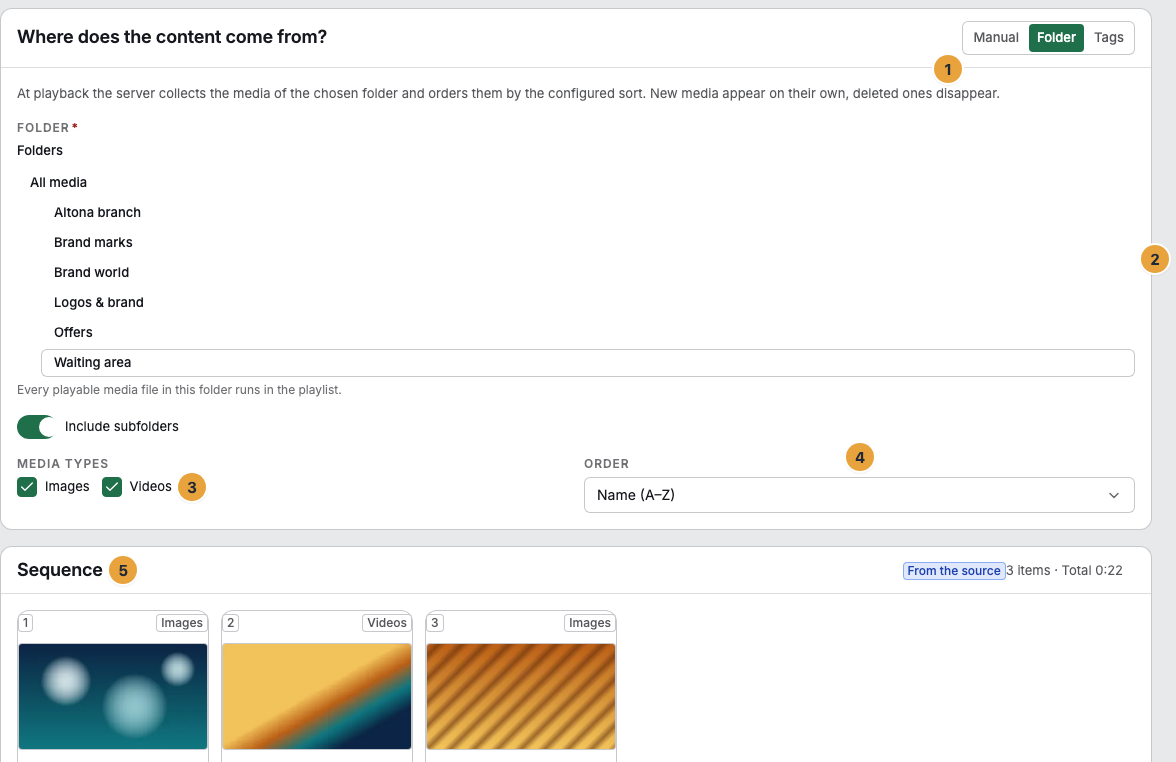
1 Segments Manual, Folder, and Tags · 2 Folder tree · 3 Media types · 4 Order · 5 Sequence with the From the source badge
Folder: determine the folder
- In the folder tree, choose the Folder. “Every playable media file in this folder runs in the playlist.”
- Switch on Include subfolders if the media in subfolders should play too.
Tags: determine the tags
- Under Tags, enter 1 to 10 tags.
- The AND rule applies: “A media file only runs if it carries ALL listed tags.” The more tags, the smaller the selection.
Media types, order, and duration
- Under Media types, choose whether Images, Videos, or both play along.
- Choose the Order: Name (A–Z), Name (Z–A), Newest first, or Oldest first.
- The duration for each image is in the Defaults under Default duration per item (seconds), not here. Videos run their natural length.
- Click Save.
OneDrive: keep an eye on the sync
A OneDrive playlist is a folder playlist whose folder fills itself. Above the selection is an origin strip.
- There you read Kept in sync from … with the account and the state Running or Paused. Below it is “Last synced: …”, and before the first run “First sync is starting — the first media will appear within the next few minutes.”
- If it says The sync is paused, the text names the reason. Reconnect obtains the permission again.
- Sync ended is not an error: the playlist keeps playing the folder, but the folder is no longer refilled.
Options
The limit of 200 media
A source playlist takes at most 200 media, in the chosen order. If the selection matches more, the sequence warns with Not the whole selection runs and says how many media are missing.
Switch from manual to a source
If you switch a curated playlist to Folder or Tags, the portal asks Take content from a source? and warns: The sequence will be discarded — a playlist with a source carries no sequence of its own. Use source confirms.
Switch from a source to manual
If you switch back to Manual, Take over as a manual playlist offers to turn the resolved media into an editable sequence. If there are more than 100, the dialog reports Not every media file fits into a sequence. The first 100 are taken over. Take over confirms.
Check the result
- The Sequence carries the From the source badge and shows the resolved media with position, name, and duration, and at the top the number and total duration. It cannot be edited.
- If the selection matches nothing: “No playable media currently matches this selection.”
- In the list under Playlists, it carries the Folder or Tags badge, and the Extent column shows the number of items. A OneDrive playlist counts as Folder.
If something goes wrong
| Symptom | Meaning | Solution |
|---|---|---|
| The playlist plays nothing | Empty folder, tags too strict, or media type deselected | Widen the selection. The sequence shows the matches immediately. |
| A freshly uploaded media item is missing | Processing is still running | Wait until the status in the media library is Ready. |
| “The source is not complete yet — please check the selection.” | Folder, tag, or media type is missing | Add the missing detail and save. |
| Not the whole selection runs | The selection matches more than 200 media | Narrow the selection or split it across two playlists. |
| The selection could not be resolved. | The preview could not be created | Click Try again. |
| The playlist is deleted, but the media are still there | When you delete it, the folder sync and the imported media remain | End the sync in the media library if it is no longer needed. |
Related
Found what you needed? Then carry on in the portal — or set up an organization first.
Go to the portalTry it free