Device lifecycle
The four actions of the Lifecycle card: what each one erases, what appears on the display afterward, whether someone has to go there, and who lifts a block.
9 minute readDevicesUpdated: 10/25/2026
On this page
Before you start
- For
- anyone who re-pairs, hands over, or reports a device as lost
- Prerequisite
- Owner role. The device belongs to your organization.
- Where in the portal
- Devices › device › tab Lifecycle
Four actions appear in the device record on the Lifecycle card. Each one affects the machine and takes all displays on it along. They differ in what is erased on the device, what appears on the display afterward, and whether someone has to go there.
What you need in front of you
- Certainty about which device you mean. Name, model, serial number, and the displays on it appear in the header of the device record.
- For Restore factory state, someone who can get to the device on site, and the credentials of your Wi-Fi. Afterward, the device can no longer be reached over your network.
- For Report as lost, certainty that the device is no longer in your hands. Only we can lift the block.
Caution: You always trigger these actions in the portal, never on the device. A device that could release itself could be taken out of a shop window and withdrawn from your organization. There is no button and no switch for this on the device.
The four actions
| Action | Text on the card | What appears on the display afterward | Does someone have to go there? | Use it for |
|---|---|---|---|---|
| Re-pair | “Membership and content go, Wi-Fi and remote access stay. The device shows a pairing code again.” | a pairing code | no | The normal case: You want to pair the device again right away, in your organization or another one. |
| Restore factory state | “Wi-Fi and remote access go as well. Afterwards the device can only be reached on site.” | the setup card with the QR code of its setup Wi-Fi | yes | The device leaves the site, for example for repair or to a place with a different Wi-Fi. |
| Remove from the organization | “The device disappears from your fleet. It can be paired again at any time, here or elsewhere.” | a pairing code | no | Returns, sale, scrap. The serial number is then free for every organization. |
| Report as lost | “Removes the device and blocks it. It cannot sign in anywhere until we lift the block.” | If it is online, This device is blocked. It was reported lost. Please contact the operator. appears first. Then it restores the factory state and shows This device is blocked. It does not get a pairing code. | — | Loss or theft. |
All four take the device out of your organization. It then no longer appears under Devices, its displays are removed, and their booked seats become free. Re-pair and Remove from the organization act the same on the device. They differ in what you intend.
The operating system stays on the device in every case. The data is erased, not the machine. After Restore factory state, remote maintenance starts with the version that comes with the operating system and then fetches the released one by itself.
For a web display, the card offers only Re-pair and Remove. A browser has neither Wi-Fi nor remote access that could be erased. Both actions take the browser’s access away. A shorter way is Delete web display in the display record, see Web display: a display in the browser.
Steps
- Open Devices, choose the device, and switch to the Lifecycle tab.
- In the Lifecycle card, click the button of the row you mean: Re-pair …, Factory state …, Remove …, or Report lost ….
- The dialog title contains the name of the device, for example Re-pair Player 7AA9. It first names the displays that go along, for example This display goes along or These 2 displays go along, each with its connector.
- For Restore factory state and Report as lost, type the name of the device to confirm, for example Player 7AA9.
- Confirm with the button that names the action, for example Re-pair or Report as lost. The feedback says what happens now, for example The device will show a pairing code shortly.
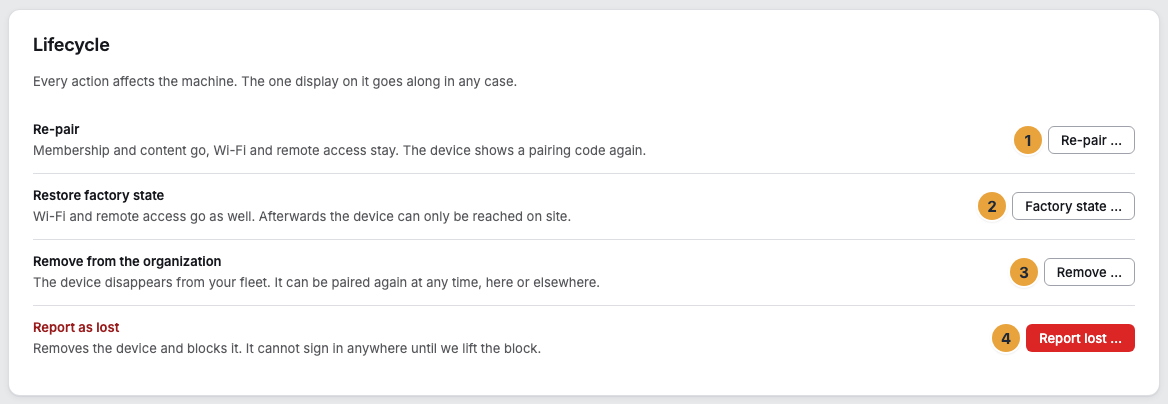
1 Re-pair · 2 Factory state · 3 Remove · 4 Report lost
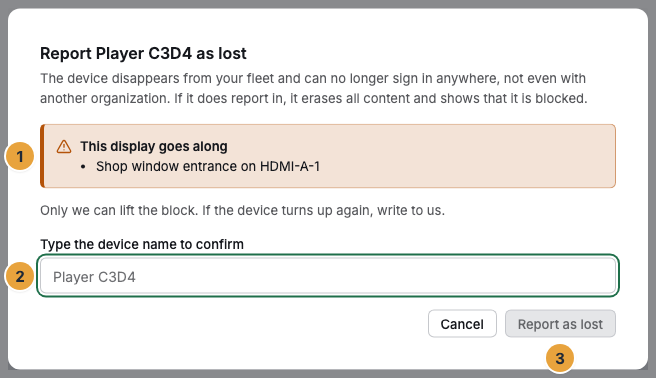
1 Displays that go along · 2 Field for the device name · 3 Report as lost
On a device with one display, the dialog names that one. On a machine with two displays, both appear there.
Caution: All displays of the machine go along in any case, even one that you did not mean. If only one display should go, use Remove display in the display record instead, see Remove a display.
Check the result
The order travels with the device’s next self-report. If it was off, it picks the order up at its next startup. It does not expire.
The acknowledgment is not a message but the re-registration: The device empties itself, registers again under its previous identifier, and shows a pairing code. Its name falls back to the factory name, for example Player 7AA9. The next organization does not see the old name. After Restore factory state, it shows the setup card first. That is exactly how you can tell that the order has arrived.
In the change log, Device released and, for each display, Display removed with its device appear afterward. After Report as lost, the first entry is Device blocked.
Caution: If a device shows a pairing code again after a restart, that was not an update but one of these actions. Updates never change the pairing.
The theft case
A device that you report as lost is blocked across the whole platform. All its certificates become invalid, and every new sign-in is rejected, with you and with every other organization. If the device turns up anywhere and reports in, it restores the factory state itself. Your content is then gone from the device.
Only we can lift the block. In your organization, only the entry in the change log remains afterward. If the device is back with you, write to us through support. After the block is lifted, you set it up on site like a fresh device, and then it shows a pairing code.
When a device reports in again
A paired device that was freshly flashed or put into factory state on site reports in with a new identity. This does not give it access to your content by itself. You decide in the device record what happens to it.
Until then, the display shows Waiting for confirmation in the portal and names the device, for example “Player 7AA9”. The Owners of your organization receive the notification Player 7AA9 reported in again in the bell and by email. The notification leads to the device record.
There, the notice This device has reported in with a new identity appears at the top. If the device record is already open, it appears there without you reloading the page. It names the first attempt, the number of attempts, and the device with model and the last four characters of the serial number. Below it are three buttons:
| Button | What happens |
|---|---|
| Accept, keep displays | The device keeps running with its displays, its program, and its name. At its next sign-in, at the latest after half a minute, it shows its content again. |
| Accept and re-pair | The device is released as with Re-pair. Its displays are removed, and it shows a pairing code. |
| Block | The device is removed and blocked as with Report as lost. You give a reason for this and type the name of the device. |
After your decision, the notice disappears, and a feedback message says what happens now.
Caution: If you did not set the device up again yourself, choose Block. Whoever knows only the serial number of someone else’s device triggers this message with it but gets no access.
An acceptance is valid for 24 hours. If the device reports in only later, the notice appears again and you confirm once more. The acceptance also applies only to exactly the identity with which the device reported in. If a different one reports in during that time, the case starts over, and you receive a new notification.
In the change log, Device reported with a new identity and, after your decision, Decision on a re-registered device appear.
When a device fails
Your content, schedules, and settings are in the platform, not on the device. A replacement device is paired in a minute. After that, assign its program to the new display, and the display shows what it showed before. Every player comes with a 12-month warranty. Write to support, and we will sort it out.
If something goes wrong
| Symptom | Meaning | Solution |
|---|---|---|
| The display keeps showing content | The device has not picked up the order yet. | Wait. The order arrives with the next self-report, at the latest at the next startup. |
| After Restore factory state, the device is no longer reachable | Expected: Wi-Fi and remote access are gone. | Set it up again on site through the setup card on the display, see The pairing screen. |
| This device has already been paired. when pairing | The device still belongs to an organization. | Trigger Re-pair … there, then pair again. |
| The message The device no longer belongs to your organization. | Someone has already taken the device out of your organization in the meantime. | Reload the list under Devices. |
| The buttons of the Lifecycle card are grayed out | You lack the permission. | Ask for the Owner role, see Permissions by role. |
| Factory state … and Report lost … are missing | The device is a web display in the browser. | Choose Re-pair … or Remove …. |
| A device reported as lost is back | The block still applies. | Write to us. We lift the block, and afterward it can be paired again. |
| The display shows Waiting for confirmation in the portal | The device is paired and has reported in with a new identity. | Decide in the device record using the notice at the top. |
| After Accept, keep displays, the notice appears again | The device reports in with a new identity at every attempt. Devices with an older system image do that. | Choose Accept and re-pair and pair the device again afterward. |
Related
- Remove a display: the gentle way that affects only one display.
- The pairing screen: what the display shows after re-pairing.
- Set up notifications: who receives the message about a re-registered device and by which route.
- Contact support: replacement device, return, warranty, and lifting a block.
Found what you needed? Then carry on in the portal — or set up an organization first.
Go to the portalTry it free