Content does not appear
Uploaded, built, or scheduled, and it is missing on the display: the chain of media item, scene, program, and display, one stage at a time.
9 minute readHelpUpdated: 10/25/2026
On this page
Before you start
- For
- Anyone who uploaded, built, or scheduled something and cannot find it on the display.
- Prerequisite
- Read permission for Media, Scenes, and Programs. To fix things, you need the respective edit permission.
- Where in the portal
- Media · Scenes · Programs · Apps
Between a file and the picture on the display lie four stations: media item, scene, program, display. Go through them in order and start at the one where your symptom is listed.
Station 1: The media item does not get into the library
| Symptom | Meaning | Solution |
|---|---|---|
| The upload is rejected with a note about the file type | The format is not on the allowed list, such as GIF or a text document. | Convert the file to a supported format: File types, sizes, and storage. |
| The upload is rejected although the type is allowed | Your organization’s storage is full. | Delete media items you no longer need and empty the trash, or book one more display, since the storage grows with it: File types, sizes, and storage. |
| The upload breaks off in the middle of the transfer | The browser tab was closed while the file was still uploading. | Keep the tab open until all uploads show Done: Upload media. |
| The tile shows no preview image | Processing is still running: status Uploading or Processing. | Wait briefly until the status is Ready: The media library. |
| The tile carries the Error badge, and the details say Processing failed | The preview could not be created. The reason is in the details. | Choose Process again in the tile’s action menu or in the footer of the details. If that does not help, check the original format: Details, preview, and usage of a media item. |
| Preparing the browser preview … | Not an error. The original was recorded in a format that the browser does not play. | Wait. As soon as the playback version is ready, the playback controls appear: Details, preview, and usage of a media item. |
| Delete is grayed out or rejected | Delete lock: the media item is used in a scene or in your brand. | Open the Usage card, remove it there, then delete: Delete, trash, and retention. |
| An old download link leads nowhere | A download address is valid for about 15 minutes. | Download again through Download in the details: Details, preview, and usage of a media item. |
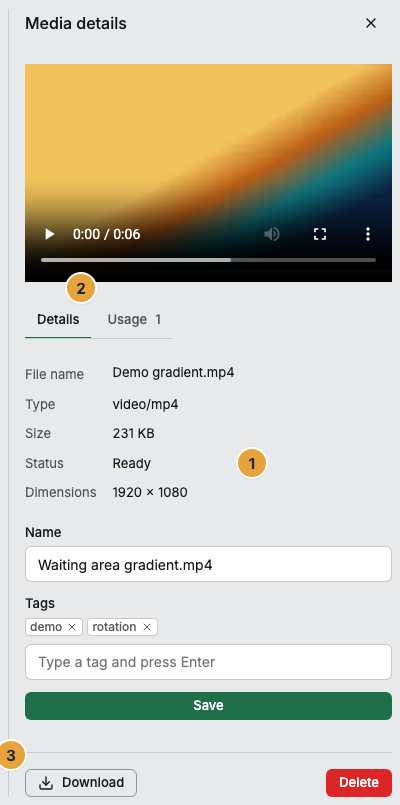
The footer additionally carries Process again as soon as the status is Error.
Station 2: The scene cannot be built or published
| Symptom | Meaning | Solution |
|---|---|---|
| Publishing blocked: unresolved integrity issues. | The scene refers to something that no longer exists: a removed app, a deleted media item, a deleted layout template. | Open the Integrity issues panel, click Re-check, fix the blocking items, then publish again: Save, publish, versions, and conflicts. |
| No content change — no new version was created | Your draft is identical to the most recently published version. | Change something and save first, then publish: Save, publish, versions, and conflicts. |
| The status line reports a conflict | Someone saved the same scene at the same time. | Choose in the dialog: Adopt server state, Force my changes, or Cancel: Save, publish, versions, and conflicts. |
| A widget has disappeared from the stage | Its slot is missing after a change of the layout template. | In the Placement tab, choose an existing slot through Snap into slot, or switch the layout template back: Place and arrange widgets on the stage. |
| A widget setting has no effect | The input has not been confirmed yet. | Leave the field and click Apply in the settings window: Configure widgets: template, preview, and fields. |
| A widget is missing from the palette or cannot be inserted | The app is not installed, it shows Not in your package, or an Update waiting needs a decision. | Install the app or decide on the update: When an app does not run. |
| The scene carries the Blocked badge | It uses an app that the booked package no longer covers. It drops out of programs and rotations but can still be edited. | Remove app from scene and then publish, or View package: When an app does not run. |
| A widget shows only a card in the editor instead of the real data | Not an error. Position, size, and settings are editable. The real data appears only on the display. | Nothing to do. If the widget stays empty on the display as well, the app lacks a setup: Manage data areas: an app’s own data. |
| No editor form — This app does not provide a config form. | This app brings no setting fields of its own. | Nothing to do. The app works with its defaults: Configure widgets: template, preview, and fields. |
Station 3: Playlist and program do not accept the content
| Symptom | Meaning | Solution |
|---|---|---|
| Please pick at least one weekday. | A weekly repeat without a day would have no occurrence at all. | Turn on at least one day or switch to One-off only: Create, edit, pause, or delete a program entry. |
| Please pick a date. | A one-time appointment without a date. | Set a date in the Date of the appointment field: Create, edit, pause, or delete a program entry. |
| This program already has the maximum number of program entries. | The limit of 200 entries per program has been reached. | Combine entries, delete ones you no longer need, or create a second program: Manage programs: rename, delete, check assignments. |
| This program still runs on at least one device. when deleting | The delete lock applies as long as an assignment exists. | First assign something else to the devices listed on the Runs on card: Assign a program to a display. |
| When scheduling, the scene carries Not published yet — only visible on displays once published. | The selected content is a draft. | Create the program entry anyway and publish the scene: Save, publish, versions, and conflicts. |
| A scene is missing from the selection on the device | The list initially shows only what matches the format of the display. | Turn on Show all formats. What does not fit runs with bars: Which format does a scene need for which display?. |
| A media item is missing from the selection in the playlist editor | Only what is fully processed and playable is offered. | Wait for processing. You can see the state in the media library: Upload media. |
| An automatic playlist plays nothing | Your source currently matches no playable media item: an empty folder or a tag combination that is too strict. | Open the playlist. The content card gives the hit count: Automatic playlists from a folder, tags, or OneDrive. |
| Not the whole selection runs | A source playlist takes at most 200 media items, in the order that is set. | Narrow the selection or split it across two playlists: Automatic playlists from a folder, tags, or OneDrive. |
| In the test run it says This scene is no longer available. | The scene this element points to no longer exists. | Remove the element from the sequence and replace it: Create a playlist. |
| These details could not be saved. Please check the time and the repeat. | The time details do not result in a valid repeat. | Check the time and weekdays. For a full window, choose All day (24 h): Day windows, midnight, and time zones. |
Station 4: The display does not show the change
| Symptom | Meaning | Solution |
|---|---|---|
| A change does not yet appear on the display’s timeline | The resolved plan for the day is cached briefly. | Click Refresh under the timeline. On the device itself, the command Refresh content helps: Remote maintenance: send commands to a display. |
| The display shows something other than planned | An override is running, another program entry applies, or an off-air period is active. | Open the Playback tab: When a display does not play what the plan says. |
| The display shows the placeholder although a program is assigned | No program entry applies to this time, and the base program is empty. | Check the weekly plan: Read the weekly plan. |
| A single program entry does not run | It carries the badge Paused, its one-time date is in the past, or its weekday is not selected. | Open the entry in the weekly plan and check it: Create, edit, pause, or delete a program entry. |
| The whole plan has no effect on a display | An override sits on top and replaces everything, even the base program. | On the Override is running card, click End override: Show something else now (override). |
| The scene is published, but the display still shows the old state | The latest state has not reached the device yet, or the device was offline. | In the Remote tab, send Refresh content: Remote maintenance: send commands to a display. |
The scene still does not run: four checks
If a scene looks finished and is still missing on the display, one of these four conditions is almost always open:
- There is a published version. A draft is never distributed. The time of the latest version is shown in the Version history panel.
- No blocking integrity issue is open. Otherwise you cannot even publish.
- All apps in the scene are usable. If an app shows Not in your package, the scene is skipped. If an update is waiting, the scene keeps playing the previous version.
- The scene is assigned to a display, directly, through a playlist, or through a program entry whose window is currently active.
Related
- Save, publish, versions, and conflicts — how a draft becomes a version that reaches displays.
- When a display does not play what the plan says — override, overlap, off-air period.
- When an app does not run — blocked apps, open consents, missing widgets.
Found what you needed? Then carry on in the portal — or set up an organization first.
Go to the portalTry it free