Book an ad campaign
You create an ad campaign and book the period, dayparts, displays, frequency, and commitment, with a preview of the delivery.
8 minute readAdvertisingUpdated: 10/25/2026
On this page
Before you start
- For
- Anyone who has agreed on airtime with a manufacturer and is now scheduling it, for example a pharmacy that commits one slot in every loop to a manufacturer for two months.
- Prerequisite
- The permission Manage ad campaigns and bookings, which Owner and Manager hold by default. Premium package or higher. An advertiser and displays whose playlists contain an ad break with slots for direct business.
- Where in the portal
- Advertising › Ad campaigns tab › Create ad campaign button
At the end, an ad campaign of your direct business is running: period, dayparts, displays, spot length, frequency, commitment, and creatives are booked, and the preview told you before booking how many plays and contacts that will produce.
An ad campaign bundles what an advertiser has booked with you. A booking within it decides which creatives run when, where, and how often, and what you commit to. An ad campaign can hold several bookings, for example one for the shop window and one for the sales floor and checkout.
Steps
Create the ad campaign
- Open Advertising. The Ad campaigns tab is open.
- Click Create ad campaign.
- Choose the Advertiser and give the ad campaign a Name made of brand and occasion, for example “Autumn care · October and November.”
- Set the period with From and To (inclusive). It applies in the time zone of your organization. Only what starts today or later can be booked. A draft may start earlier, but to book it, move its start to today or later.
- Choose the Goal: Plays, Airtime, or Contacts. Fulfillment is counted in this unit.
- Under Price, record what you agreed: no price, Flat price, Price per thousand contacts, or Price per thousand plays, each in euros, net. You issue the invoice to your advertiser yourself.
- Click Create and set up a booking. The ad campaign starts as a draft, and the editor for its first booking opens.
Plan the booking
The editor is titled New booking, or Edit booking for an existing booking, and has six sections. On the right is the preview What this booking delivers, which recalculates with every input.
- Period. Give the booking a name, for example “Sales floor and checkout,” and set From and To (inclusive) within the period of the ad campaign. Below, it shows how many weeks and opening days that is. Days on which all locations are closed appear as closed in the strip.
- Dayparts. Choose All day, Mornings, Afternoons, or Custom and mark the hours for each weekday in the grid. At most eight time windows per day. Outside opening hours there is no planned time and therefore no target.
- Displays. Choose the displays, by placement or individually for each location. Each row states the format, plays and contacts per day, and how many slots in the ad break are free. Displays that do not qualify state their reason.
- Spot length and frequency. Choose the Spot length, 5, 10, 15, 20, or 30 seconds, to match the ad breaks of the selected displays. Then choose the frequency: every fifth loop, every second loop, every loop, or 2 slots per loop. Frequencies that no longer fit the free slots are disabled.
- Commitment. Choose the Unit, Plays, Airtime, Contacts, or None, and the Quantity. Below the field, you see the planned quantity and the recommendation to commit to at most 95 percent of it, so that outages do not put the commitment at risk. The Minimum share of the zone is set to 25 percent, the Validity rule to version 1.
- Creatives. Use Add creative to add the creatives of the advertiser, or create one with New creative from your media. If several creatives run, the Weight from 1 to 100 decides how often each appears.
Finally, click Book. If the ad campaign is still a draft, this books it, and the message reads Booked. The ad campaign runs within its period. If you do not want to book yet, click Save as draft. If you change a booking of an already booked ad campaign, the button is called Save.
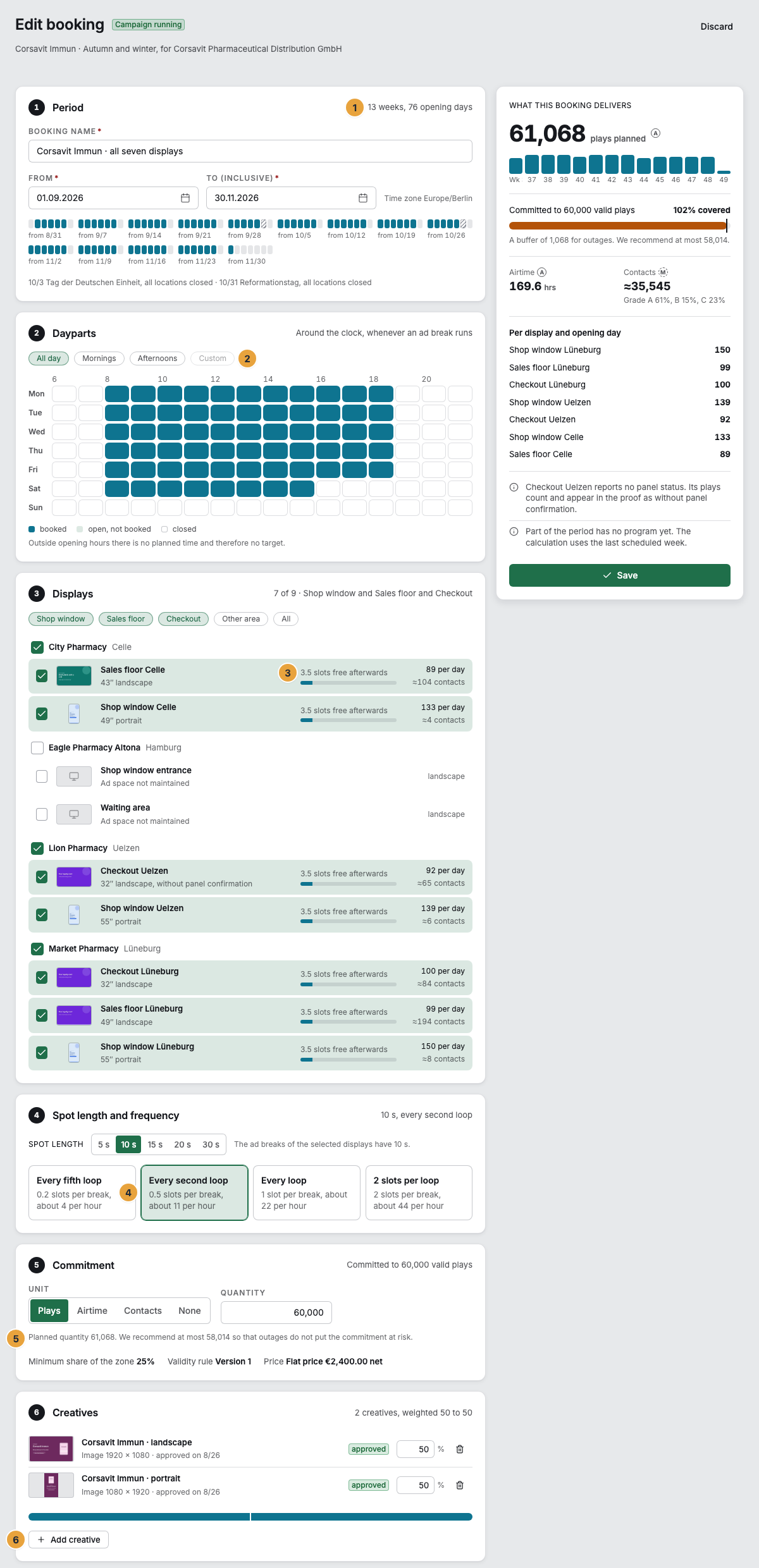
1 Weeks and opening days · 2 Dayparts · 3 Free slots per display · 4 Frequency · 5 Planned quantity · 6 Add creative
Options
What the preview says
| Figure | Meaning |
|---|---|
| plays planned | How many plays the booking gets in the period, shown as bars per calendar week. The calculation uses the programs of your displays during opening hours. Where the program is not set yet, the preview calculates with the last scheduled week and says so. |
| … covered | Planned quantity divided by commitment. Below it, the buffer for outages or what is still missing to reach the commitment. |
| Airtime | Plays times spot length. |
| Contacts | Modeled from the audience of the locations, with the share of grades A, B, and C. Locations without an audience contribute no contacts. |
| Per display and opening day | Plays per display on one opening day. |
The preview warns when a display reports no panel status (its plays count and appear in the proof as without panel confirmation), when a creative is still awaiting approval, when no creative is approved, when a creative lacks the mandatory text, and when the slots of a display are full after this booking.
Why a display does not qualify
| Reason | Meaning |
|---|---|
| no ad break of this length | No playlist of the display has an ad break with this spot length. |
| slots full | The slots of your direct business are taken by other bookings. |
| no program | No program is assigned to the display, so no planned time arises. |
| no creative in this orientation | The display hangs in portrait, the creatives are landscape, or the other way around. |
| locked | The display is locked. |
| not selected | You have not selected the display. |
The ad campaign during its run
Clicking the ad campaign opens it with the tabs Delivery, Bookings, Creatives, and Settings:
- Delivery shows how the bookings deliver: Analyze ad campaigns.
- Bookings lists every booking with period, displays, commitment, and creatives. Pause and Resume take effect immediately. Remove booking is available only as long as the booking has not started. A booking that has started is paused, not removed, because its plays and proofs refer to it.
- Settings holds the details and the status: Book, Pause, Resume, and End early. Ending early cannot be undone. Measurement and proofs up to that point remain valid.
A paused ad campaign delivers nothing but keeps its slots. Network ad campaigns also appear in the list, marked via Szenera. Szenera maintains their bookings, and the delivery shows what reaches your displays.
Check the result
- In the list, the ad campaign appears under Running or Coming up, with advertiser, number of displays, and spot length.
- Once it runs, the row shows the fulfillment, the day within the period, and the pacing, for example on track.
- The displays receive the booking with their next playback package and show the creatives in their ad breaks as soon as a creative is approved. The target against which delivery is measured starts accruing at the next full hour.
If something goes wrong
| Symptom | Meaning | Solution |
|---|---|---|
| “The frequency does not fit the free slots.” | At least one display does not have enough free slots. The Spot length and frequency section states how many slots are requested and how many are free. | Choose a lower frequency, remove the display, or give the ad break more slots. |
| “The booking must lie within the period of the ad campaign.” | From or To lies outside the ad campaign. | Shorten the booking or extend the ad campaign. |
| “A booked ad campaign cannot start before today. …” | The ad campaign starts before today. Nothing is booked retroactively, as that would create proofs for days on which nothing was booked. | Under Settings, move the start to today or later, and then book. |
| “The booking cannot start before today. …” | A new booking of a booked ad campaign starts before today, or you move the start of a booking to such a date. | Choose today or a later day as From. A running booking keeps its start. |
| “No creative is approved. The booking delivers nothing until the first approval.” | The booking is in place, but no creative may run. | Create and approve creatives. |
| “The ad breaks of the selected displays have … This spot length fits none of them.” | The spot length of the booking and the ad breaks do not match. | Choose one of the stated spot lengths or change the ad break. |
| “The new period would cut off bookings. Shorten the bookings first.” | You are shortening an ad campaign whose bookings run longer. | Shorten the bookings first. |
| “The booking has started. Pause it instead of removing it.” | Removing works only before the first day. | Pause the booking. |
| “Your own advertisers and ad campaigns are available from the Premium package.” | Your package does not include direct business. Existing items stay readable and can be paused. | View packages. |
Related
Found what you needed? Then carry on in the portal — or set up an organization first.
Go to the portalTry it free