Set up ad space and audience
You record where a display hangs and how many visitors your location has per hour, so that contacts can be calculated.
7 minute readAdvertisingUpdated: 10/25/2026
On this page
Before you start
- For
- Owners and Managers who sell ad slots and want to report reliable contacts, for example a pharmacy with a door counter or a beverage store that knows the receipts per hour from its checkout.
- Prerequisite
- The permission Manage ad space and audience, which Owner and Manager hold by default. Available in every package.
- Where in the portal
- Advertising › Ad inventory tab
At the end, Szenera knows where each display hangs, how large it is, and whether the ad network may reach it, and for each location how many visitors it has per weekday and hour. From this, the preview of a booking and Analytics calculate the contacts.
The Ad inventory tab lists your displays by location. For each location, it shows the venue type, the region, and the grade of its audience, and for each display its ad space: placement, format, factor, and whether it is in the network.
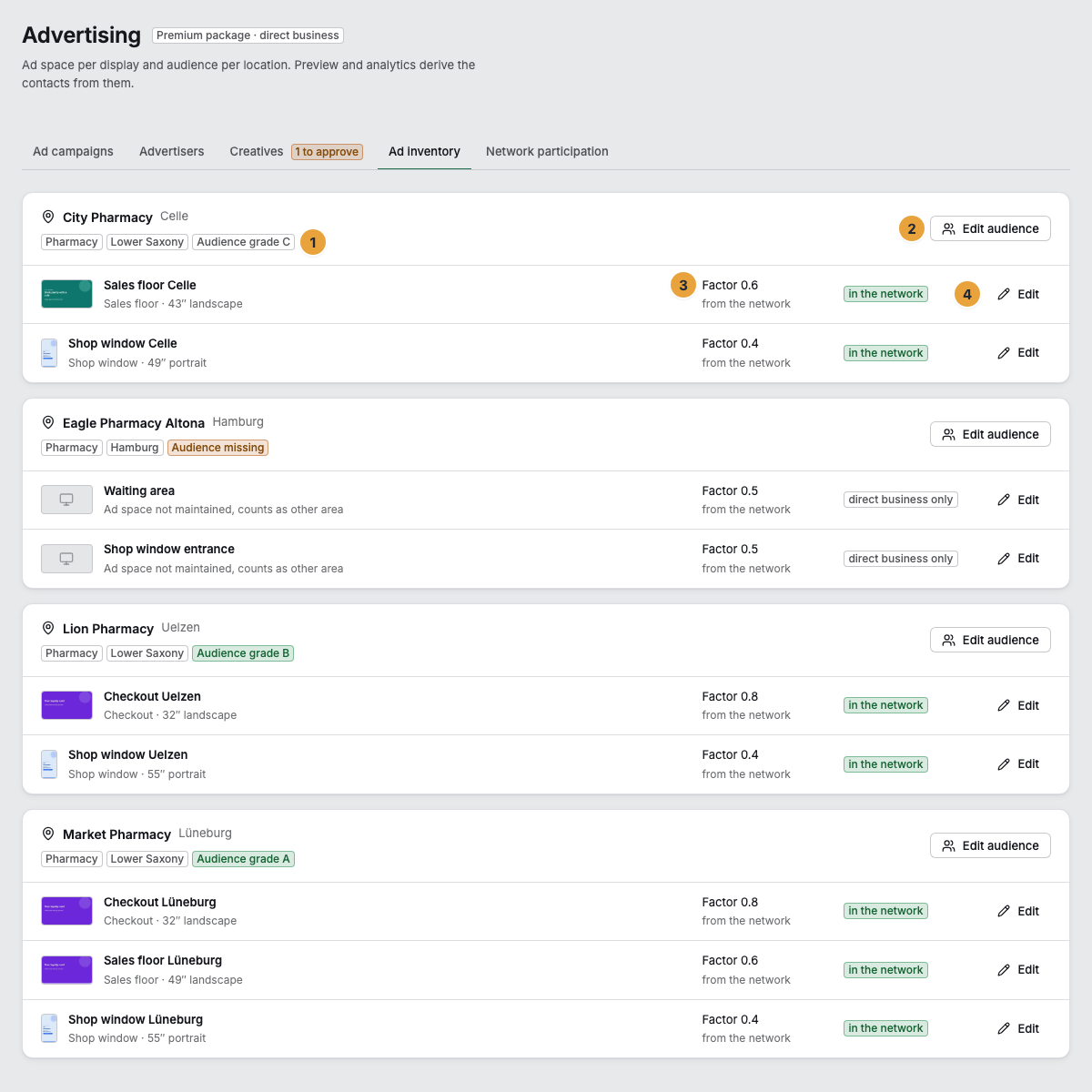
1 Grade of the audience · 2 Edit audience · 3 Ad space of a display · 4 Edit
Steps
The ad space of a display
- Open Advertising and switch to the Ad inventory tab.
- In the row of the display, click Edit. The Ad space of … dialog opens.
- Choose the Placement: Shop window, Sales floor, Checkout, Waiting area, or Other area. It determines the dwell time, factor, and price that the network uses in its calculation.
- Enter the Diagonal in inches (7 to 150) and choose the Orientation, landscape or portrait. The orientation decides which creatives the display shows: A landscape creative does not run on a display that hangs in portrait.
- If you leave the factor open, the network factor of the placement applies. If the display is more or less visible than usual, select Own factor for this display and enter a value from 0 to 1.
- Select Enable for network bookings if the ad network may reach this display. This takes effect only once your organization joins the network, and network bookings take only the slots that an ad break leaves to the network.
- Click Save. The message reads The ad space has been saved.
A display without a maintained ad space appears in the list as Ad space not maintained, counts as other area, in landscape orientation and not enabled for the network.
The audience of a location
- In the header of the location, click Edit audience. The Audience · … page opens.
- Fill in the Visitors per hour grid: one row per weekday, one column per hour. You can enter numbers or paste a block from a spreadsheet, which is spread out from the chosen cell. Below it, the total appears as … visitors per week.
- Under Source and measurement, choose the Source: Door counter, Survey kit, Checkout receipts, or Own estimate. For door counter and survey kit, enter the period, Measured from and Measured to.
- For Checkout receipts, enter the People per receipt, from 1.0 to 4.0, for example 1.3 for companions.
- Optional: Enter a Seasonal index per month (10 to 300 percent) if your store is much busier in December than in August, and a Measured dwell time per placement in seconds if you know it. Without your own value, the dwell time of the network applies, which is shown next to the field.
- Click Save. The message reads The audience has been saved.
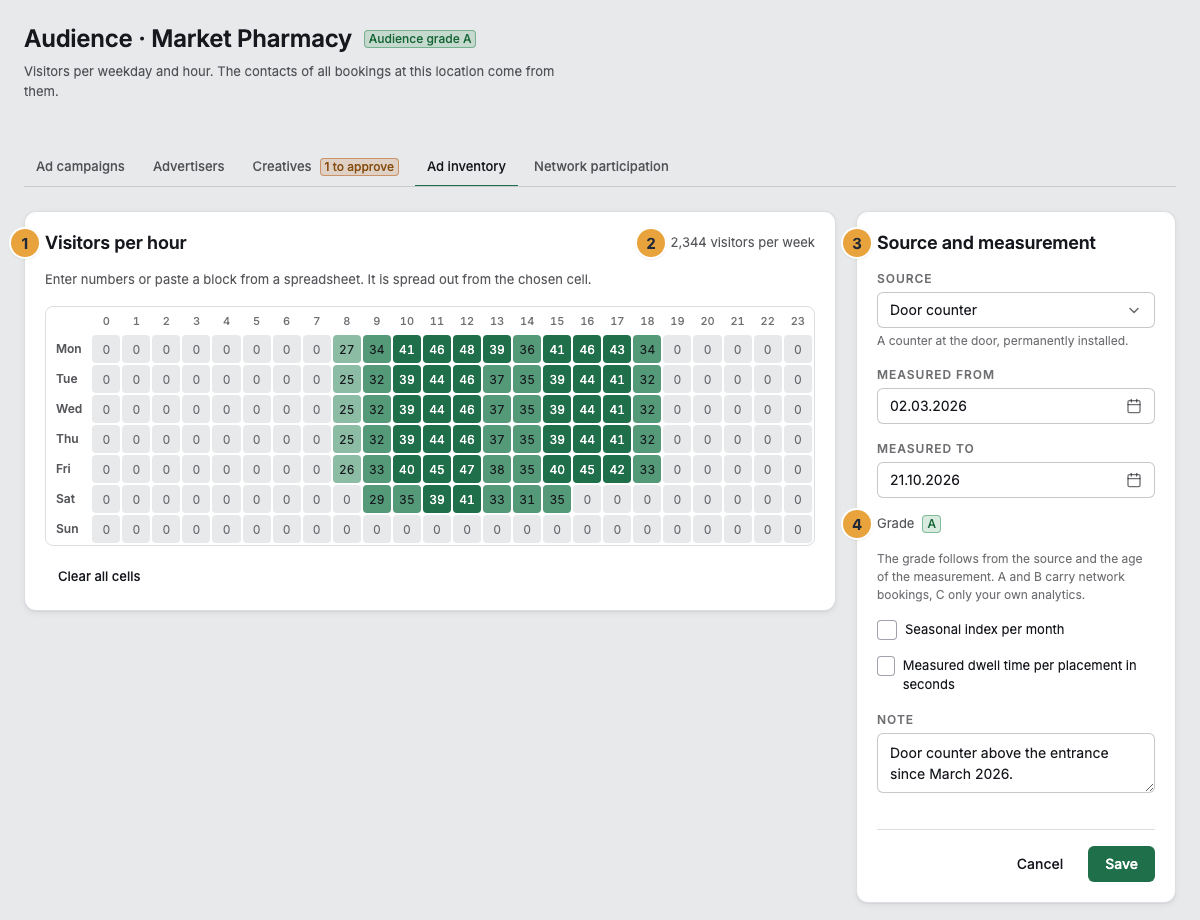
1 Visitors per hour · 2 Total per week · 3 Source and measurement · 4 Grade
Options
The grade of the audience
You do not set the grade. It follows from the source and the age of the measurement:
| Grade | Source | What it counts for |
|---|---|---|
| A | Door counter or survey kit, measured within the last twelve months | Your analytics and network bookings |
| B | Door counter or survey kit, older than twelve months, or checkout receipts | Your analytics and network bookings |
| C | Own estimate | Only your own analytics, marked there as estimated |
A count that gets older falls back from A to B after twelve months. Network bookings calculate contacts only from grades A and B: The self-declaration “300 customers a day” does not support a sale to third parties.
The grade rates the kind of your information, not its accuracy. A and B also rest on what you enter: the visitors from your counter, survey kit, or checkout and the period of the measurement. So far, Szenera does not verify these entries and does not request any evidence. Therefore, enter only what you can back up, for example with the export of the counter, the report of the survey kit, or an extract from the checkout, and keep that evidence. Contacts of grades A and B appear in the proofs for advertisers and, with a price per thousand contacts, feed into your credit note.
How visitors become contacts
A contact is the modeled opportunity for a person to see a play. The following applies to every valid play:
Contacts = visitors per hour × (dwell time + spot length) ÷ 3600 × placement factor
The visitors per hour come from your grid, multiplied by the seasonal index of the month and, for checkout receipts, by the people per receipt. Dwell time and factor apply per placement. Without your own values, the network calculates with these defaults:
| Placement | Factor | Dwell time |
|---|---|---|
| Shop window | 0.35 | 5 s |
| Sales floor | 0.6 | 300 s |
| Checkout | 0.8 | 90 s |
| Waiting area | 0.7 | 600 s |
| Other area | 0.5 | 60 s |
An example from the sales floor of a pharmacy: 30 visitors per hour, 300 seconds of dwell time, a creative of 10 seconds, and the factor 0.6 result in 30 × 310 ÷ 3600 × 0.6 ≈ 1.55 contacts per play. Contacts are never more granular than per location and hour, because anything finer would be false precision.
Venue type and region
Network ad campaigns target types of venues and regions. You maintain both at the location, the venue type in the Edit dialog and the region as a federal state in the Opening hours tab: Create locations and assign displays to them. If one is missing, the header of the location says Venue type missing or Region missing, and a booking that selects by it does not reach these displays.
Check the result
- The header of the location says Audience grade A, B, or C instead of Audience missing.
- The row of the display states the placement and format, the factor with the addition own value or from the network, and in the network, direct business only, or network off.
- The preview of a booking states contacts with their grade. Displays at locations without an audience appear there as no audience.
If something goes wrong
| Symptom | Meaning | Solution |
|---|---|---|
| The Ad inventory tab is missing. | Your account lacks every one of the permissions that show it. | An Owner grants Manage ad space and audience: Permissions by role. |
| network off on an enabled display | Your organization does not participate in the ad network. | Join the ad network. |
| Displays appear under Without location. | No location is assigned to these displays, so their audience does not count. | Assign them to a location: Create locations and assign displays to them. |
| The grade shows B even though you count visitors. | The measurement period ended more than twelve months ago. | Enter a new measurement. |
| “Please enter a value from 1.0 to 4.0.” | The people per receipt are outside the range. | Enter a value between 1.0 and 4.0. |
| “The end is before the start.” | The two dates of the measurement are swapped. | Swap Measured from and Measured to. |
Related
Found what you needed? Then carry on in the portal — or set up an organization first.
Go to the portalTry it free