My apps and the page of an installed app
You want to see what is installed and cannot find a detail about an app right away.
8 minute readAppsUpdated: 10/25/2026
On this page
Before you start
- For
- Anyone who uses or maintains installed apps or checks their status.
- Prerequisite
- The read permission for apps. Any account may view, including a member. Only an owner may install, uninstall, and decide on updates.
- Where in the portal
- Apps › My apps
Look here to find out what a column, a status, or a tab means. My apps shows only what your organization has installed. A click on a row leads to the app’s page with its tabs.
The header of the page
Above the table is the title My apps and below it a sentence with the counts of your installed apps, for example “5 apps installed, 3 of them in scenes.” If at least one app is waiting for a decision, the sentence mentions it: “5 apps installed, 3 of them in scenes, 1 with an update waiting.” At the top right, Discover apps leads to the store.
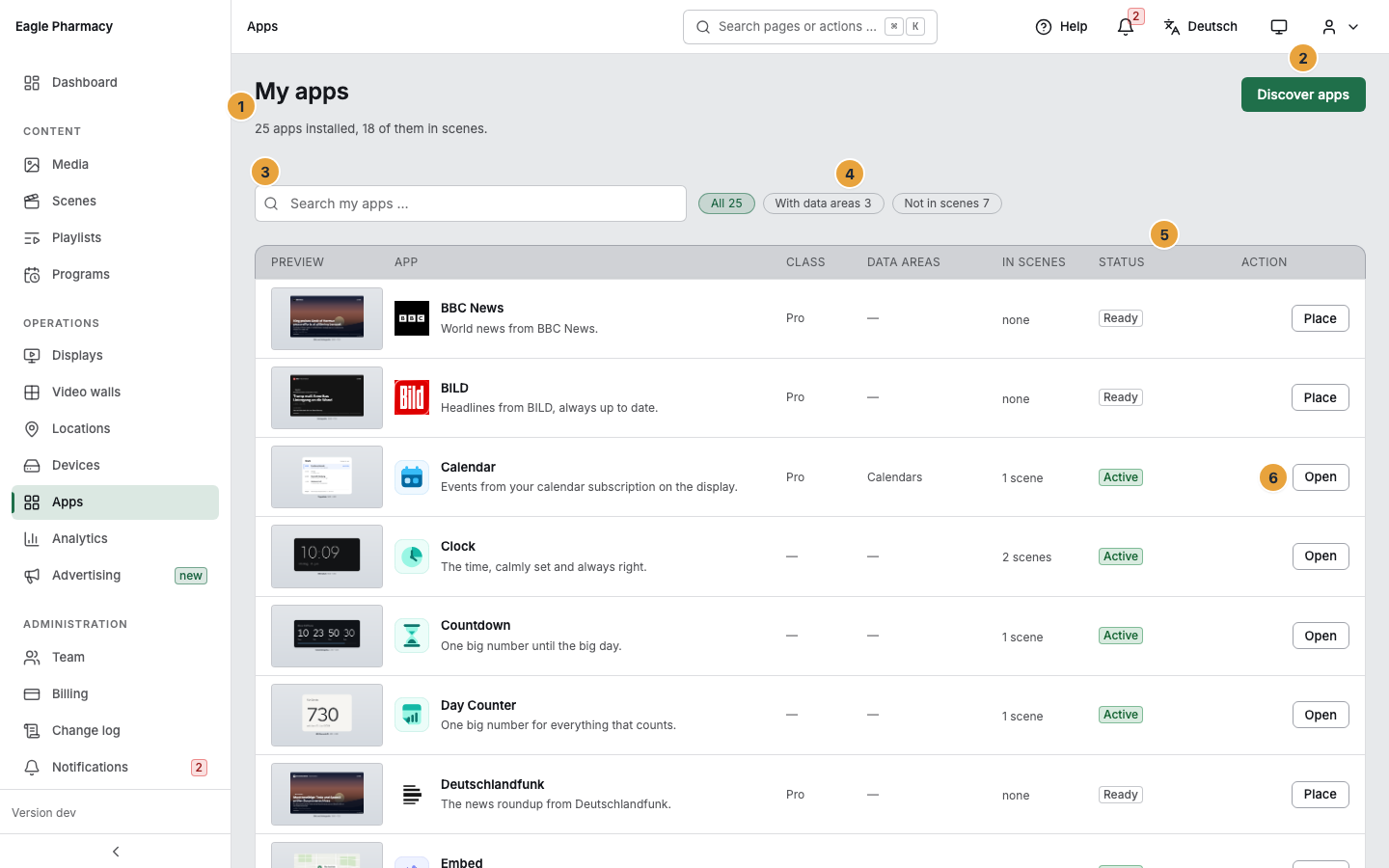
The video wall is not in the table. It is a core feature of the platform and not an app. Your video walls are on the Video walls page, see Video wall.
The columns of the table
| Column | What it contains |
|---|---|
| Preview | The picture of the main widget of the installed version. |
| App | Icon, name, and the tagline of the app. |
| Class | Pro or Add-on, a dash for an app that is included in every package. The class decides whether your package includes the app. |
| Data areas | The app’s own data areas, such as Locations and Duty rosters. If the app keeps none, a dash appears there. |
| In scenes | The number of scenes with a widget of the app, otherwise none. |
| Status | Where the app stands, see the next table. |
| Action | The one step that fits the status. |
Filters and search
The Search my apps field with the placeholder “Search my apps …” and four filters narrow the list.
| Filter | What it shows |
|---|---|
| All | Everything that is installed. |
| With data areas | Only apps that keep data of their own. |
| Not in scenes | Installed but not placed anywhere. These are the candidates for cleaning up. |
| Needs attention | Apps whose update is waiting for a decision, and apps that are not in your package. |
Status and matching action
| Status | Meaning | Action in the row |
|---|---|---|
| Active | The app is running and is in at least one scene. | Open |
| Ready | Installed, but not placed in any scene. | Place |
| Update waiting | Version and reason, for example “Version 1.3.0 is waiting. Reason: a new permission.” The app keeps running on its current version until then. Only its widgets cannot be newly placed. | Decide leads to the Update tab |
| Not in your package | Your package no longer includes the app, or the booking has ended. The row names the reason, for example “The app belongs to the Pro package. Settings and data are kept, with Pro it runs again immediately.” | View packages |
| Switched off | “We have temporarily switched off this app. Your settings and data are kept.” | none |
On the app’s own page, an active app carries the more precise badge Active · in 3 scenes.
When the list stays empty
| What you see | When it appears |
|---|---|
| No app installed yet. and “The store has apps for widgets, data and industry content.” | The organization has not installed anything yet. The Discover apps button leads on to the store. |
| No app matches the filter. and “Adjust the search term or filter.” | The search or filter is too narrow. |
Below the table, a suggestion sometimes appears: Fits your apps names an app from a category in which you already use apps.
The header of an app’s page
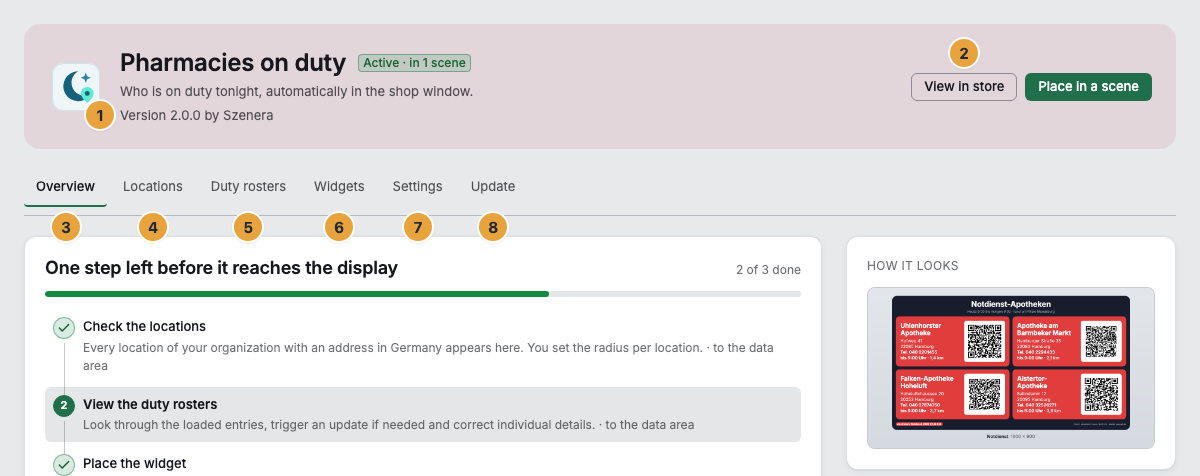
At the top are the icon, name, and the status badge from the table. Below that follow two lines: the app’s tagline and the installed version with its publisher, for example “Version 1.2.0 by Szenera.” On the right, View in store leads to the app’s listing in the store. Place in a scene opens the creation of a new scene, and you place the widget there from the palette. If the app connects an external account, the Connected accounts box sits below the header.
Everything on the page describes the installed version. If a newer version is waiting for your consent, the installed one keeps running until then, and the widgets, data areas, and access of the new one apply only after you consent. What it changes is stated in the Update tab.
The tabs
The tabs are real addresses: a tab can be linked to, and the browser’s back button works as expected.
| Tab | Contents |
|---|---|
| Overview | Setup, data areas, widgets, the scenes using the app, Data & access in short form, and the key facts of the installation. |
| Data areas | One tab per data area, with the name the app gives it, such as Locations, Duty rosters, or Menus. |
| Widgets | All views of the app, labeled, with the note “You can place these widgets in the scene editor.” If the app brings none, it says “This app does not provide widgets.” |
| Settings | Data & access, Roles & permissions, the key facts of the installation, and removing the app. |
| Update | The decision on a waiting update, the scenes to be lifted after a major jump, and the earlier decisions. If a decision is waiting, the tab carries a counter, and a narrow banner with the reason appears below the app’s header. |
What the Overview tab shows
| Block | Contents |
|---|---|
| Setup | The steps as a step bar with progress, for example “1 of 3 done,” above it 2 steps left before it reaches the display or Setup complete. A step leads to the data area or the scenes where it is to be done. |
| Data areas of this app | Shortcuts to the app’s data areas. |
| What appears on the display | The widgets with their number of views and, for each widget, the path Place in a scene. |
| In these scenes | The scenes that use the app, by name, for example “Pharmacies on duty is used in 2 scenes.” The name opens the scene in the editor, and so does Place. Without a scene it says “No scene uses Pharmacies on duty yet.” Place in a new scene opens the creation of a new scene. |
| How it looks | The main view of the app as a picture. |
| Data & access | The short version: Creates: Locations and duty rosters or Stores no data of its own, Fetches data from: … or No outbound connection, plus the sentence on what happens to the data when you uninstall. See the full disclosure opens the long version. |
| Installation | Version, Installed with the time, and Publisher. |
What the Settings tab shows
At the top is Data & access in full (“What this app does with data, before and after you install it.”) with the blocks Creates for you, Reads existing data, Adds data, External connections, and When you uninstall. Below it, Roles & permissions expands the app’s permissions. They control who on the team may operate the app, not what the app accesses.
Under Installation follow the Version and Installed. Who agreed to which version and when is recorded in the Update tab under Earlier decisions, and a link leads there. At the very bottom is the Remove app section with the sentence on what happens to the app’s data.
The widgets in the scene editor
After installation, an app’s widgets appear in the scene editor’s palette automatically, under the category that also appears above the app in the store. If an update of the app is waiting for a decision, its tile stays and carries Update waiting. It cannot be inserted anew until then, and a click opens the Update tab. Scenes that already show it keep running on the current version. If the app shows Not in your package or is Switched off, its tile appears dimmed with the reason.
Related
- Manage data areas: an app’s own data — filling the tabs with their own data.
- When an app update is waiting for your decision — deciding on a waiting update.
- Uninstall an app — the Remove app section in the Settings tab.
Found what you needed? Then carry on in the portal — or set up an organization first.
Go to the portalTry it free